
This document explains how to update prices for products that are currently displayed with the status “Price Out of Range” in the seller’s administrative panel. The process is divided into clear steps to ensure proper understanding and correct execution.
Step 1: Access the Seller Panel #
- Initial Access:
- Log in using your seller credentials. (If you have any issues logging in, please refer to the article HOW TO ACCESS MY SELLER ACCOUNT.)
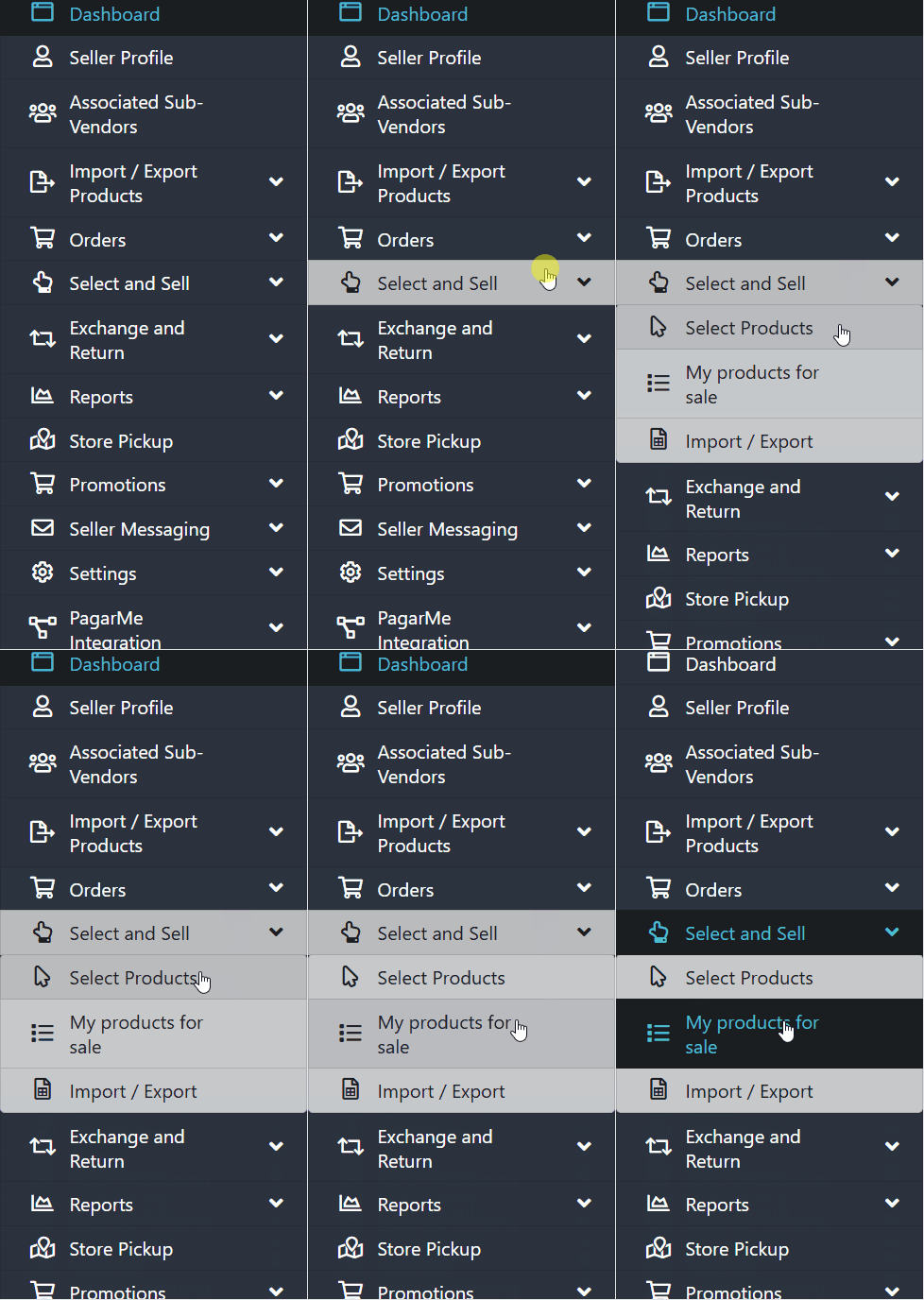
- In the side menu, go to Select and Sell and access My Products for Sale.
Step 2: Identify Products with Outdated Prices #
1. Product Status:
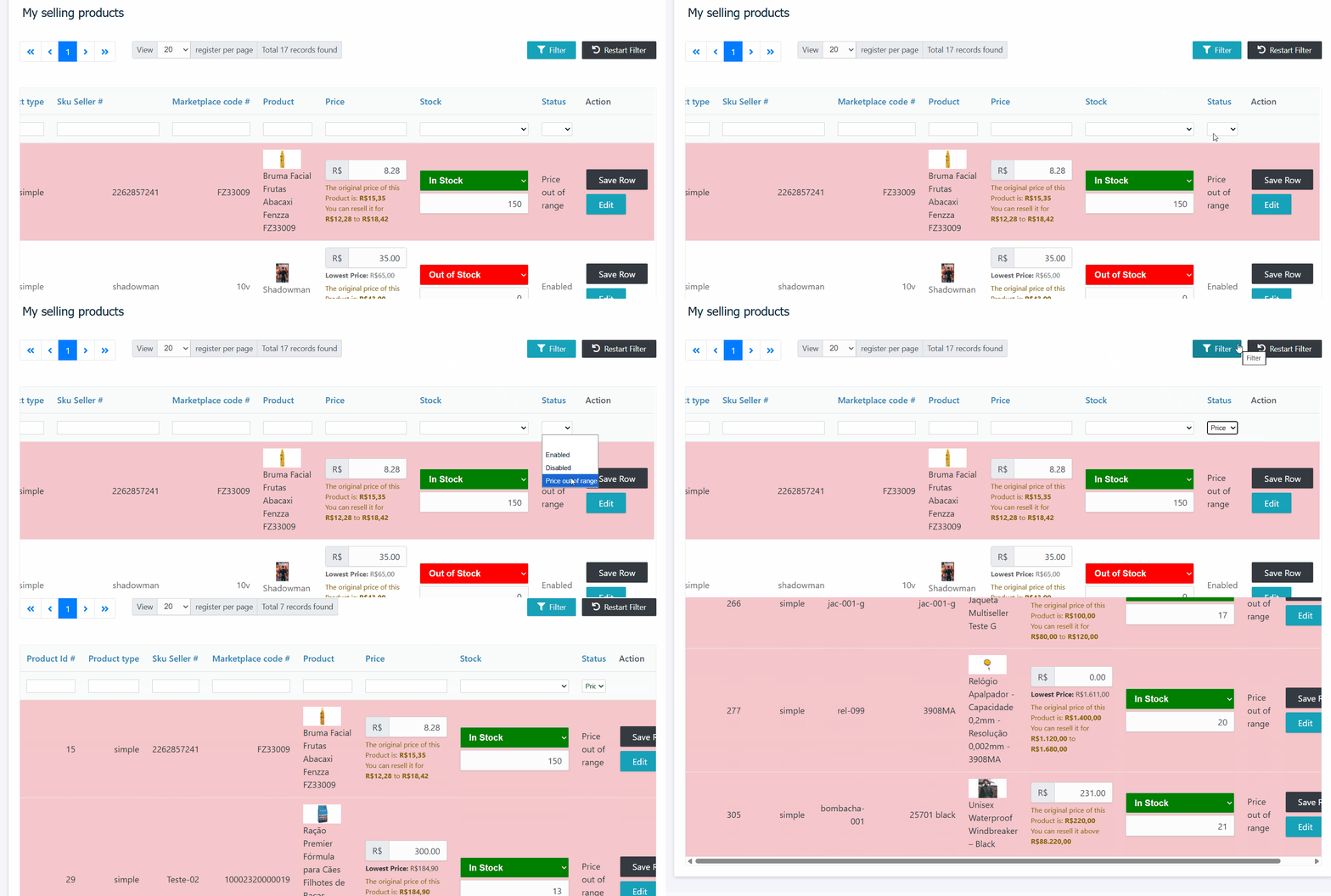
- Products highlighted in red indicate that their price is outside the allowed range and must be updated.

2. Price Validation:
- Check the price field to identify values below the minimum allowed by the marketplace administrator.

Step 3: Update Prices Individually #
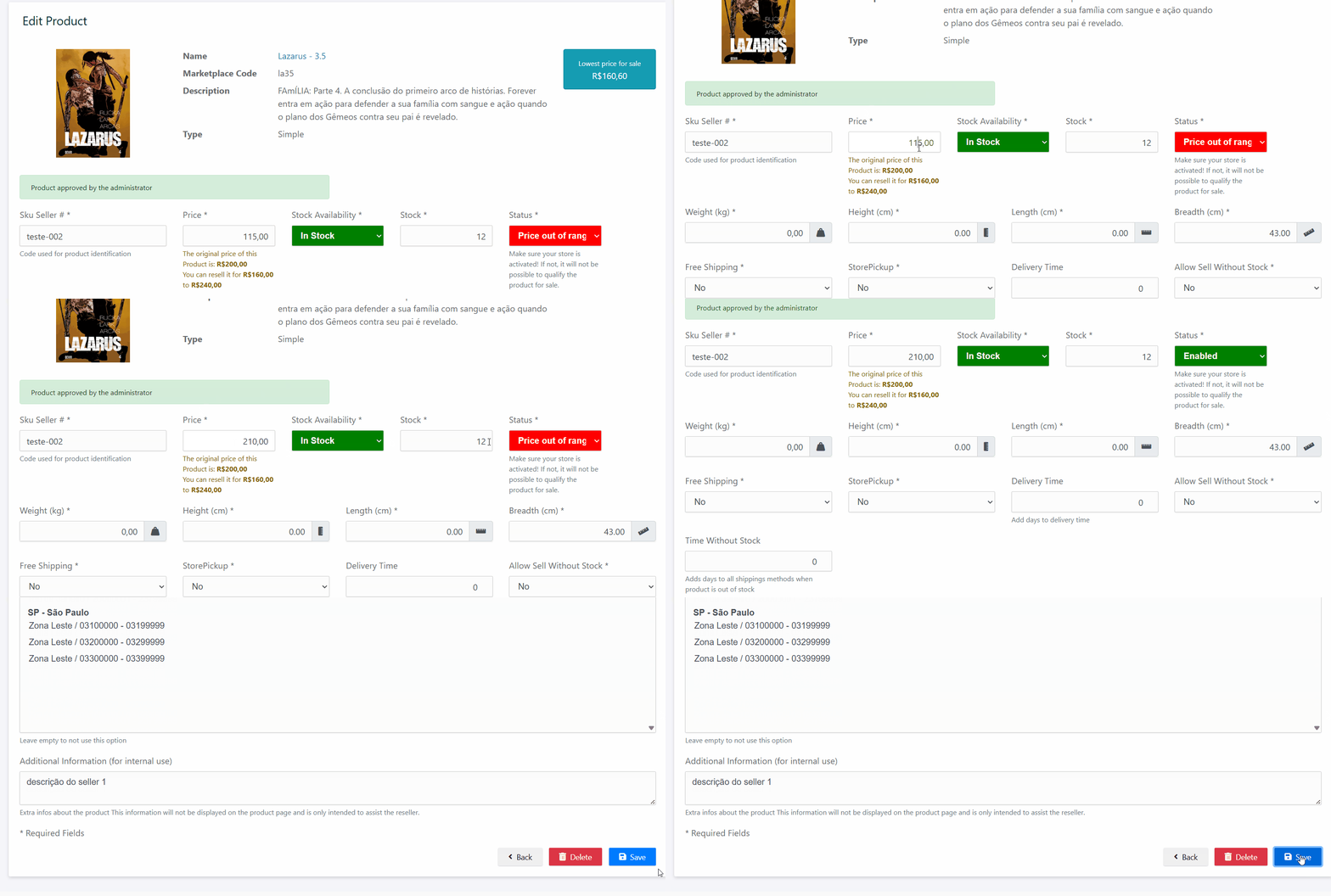
⚠️ Important: Do not update the price using the Save Row option outside the Edit screen. If you do, make sure to open the product in Edit mode to update the product Status as well.
- Edit the Product:
- Select the desired product and click Edit.

- In the price field, enter the correct value (for example: if the minimum allowed is R$ 12.50, enter this value).
- Change the status from “Updated Price” to “Enabled”.
Step 4: Identify All Products with Outdated Prices #
- Filter Products:
- In the product grid, use the filters to display only products with the status “Updated Price”.
- Notifications:
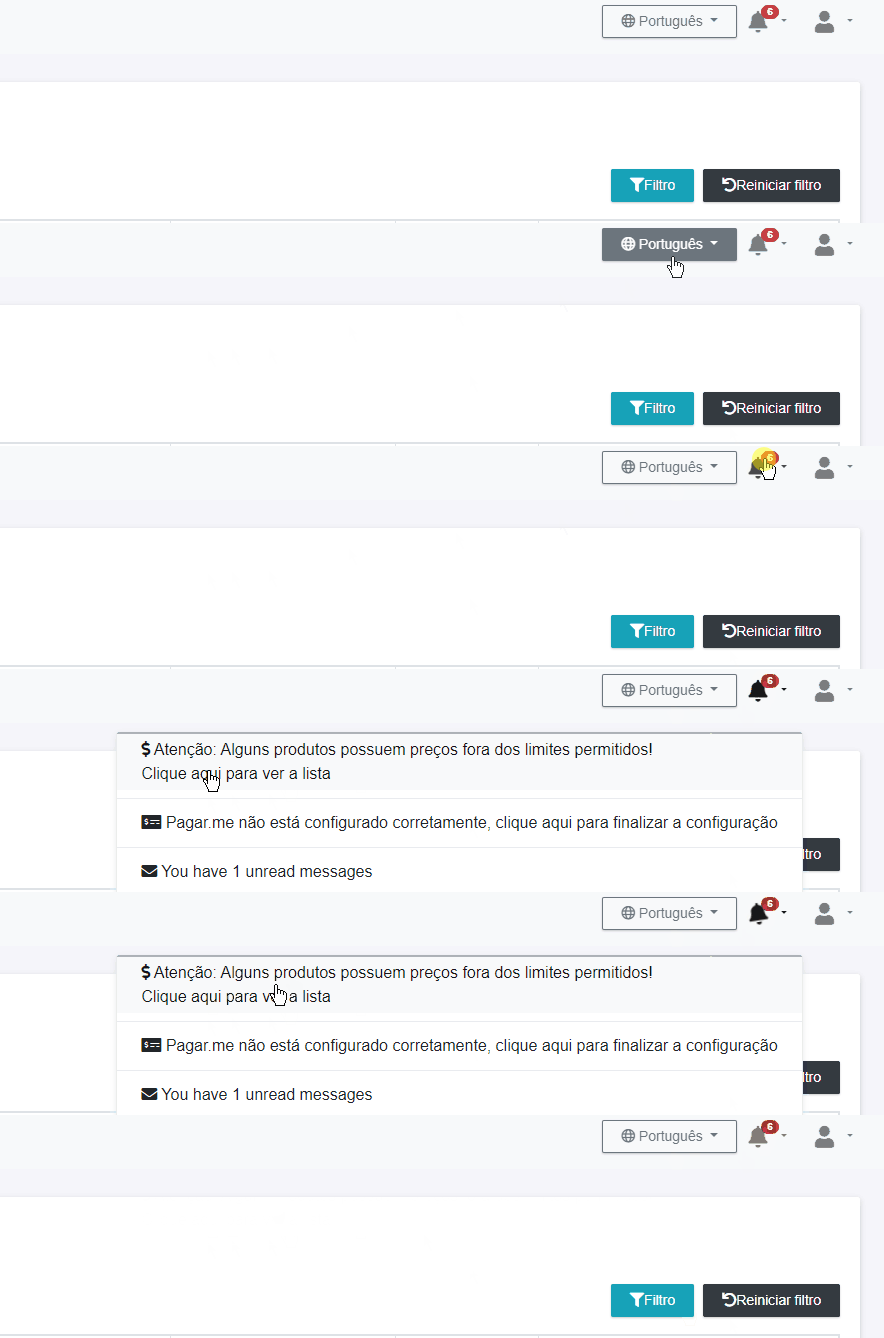
- You can also use the notifications (bell icon) to quickly identify products with outdated prices.
Conclusion #
This guide provides a clear and efficient method for identifying and correcting products with outdated prices in the seller’s administrative panel. If you have any additional questions, review the notifications or contact Support for assistance.
If you want to perform this process for multiple products at the same time, access the documentation Bulk Price Update Using Spreadsheet.
If you have any questions or encounter any issues, feel free to contact our Support Team. We’re always available to assist you!