
Below, you will find a detailed step-by-step guide on how to configure free shipping for your products, either for specific regions or for all of Brazil. Before setting up free shipping, you must access your seller dashboard. If you are unsure how to do this, please read our article “How to access my seller account.”
Once you are in your seller dashboard, navigate through the side menu to the “Settings” option. Then, click on it and select “Shipping Methods.”
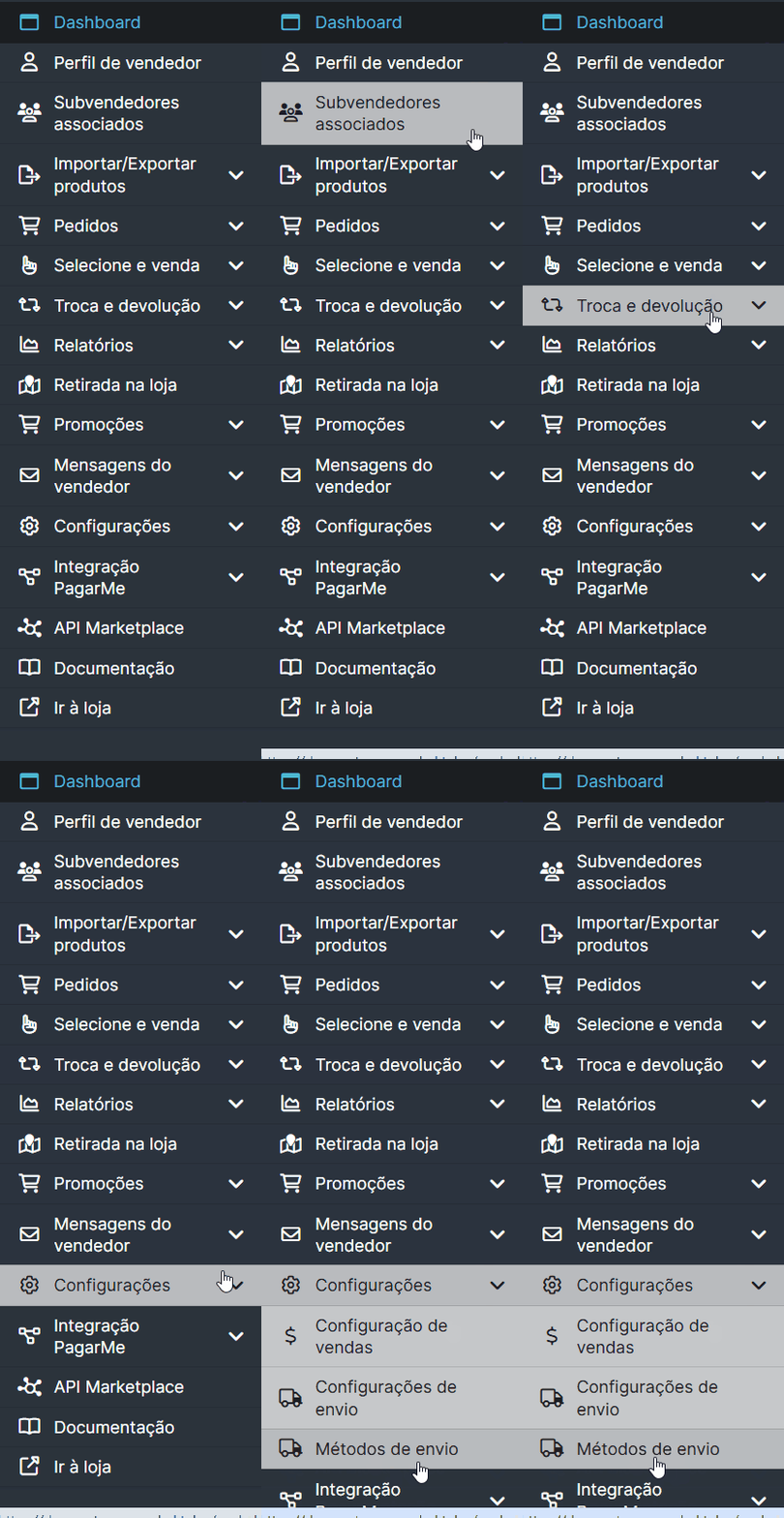
Wait for the new page to load and then navigate to the “Free Shipping” option. If it is disabled, click the “No” button and switch it to “Yes” in the first option called “Active.”
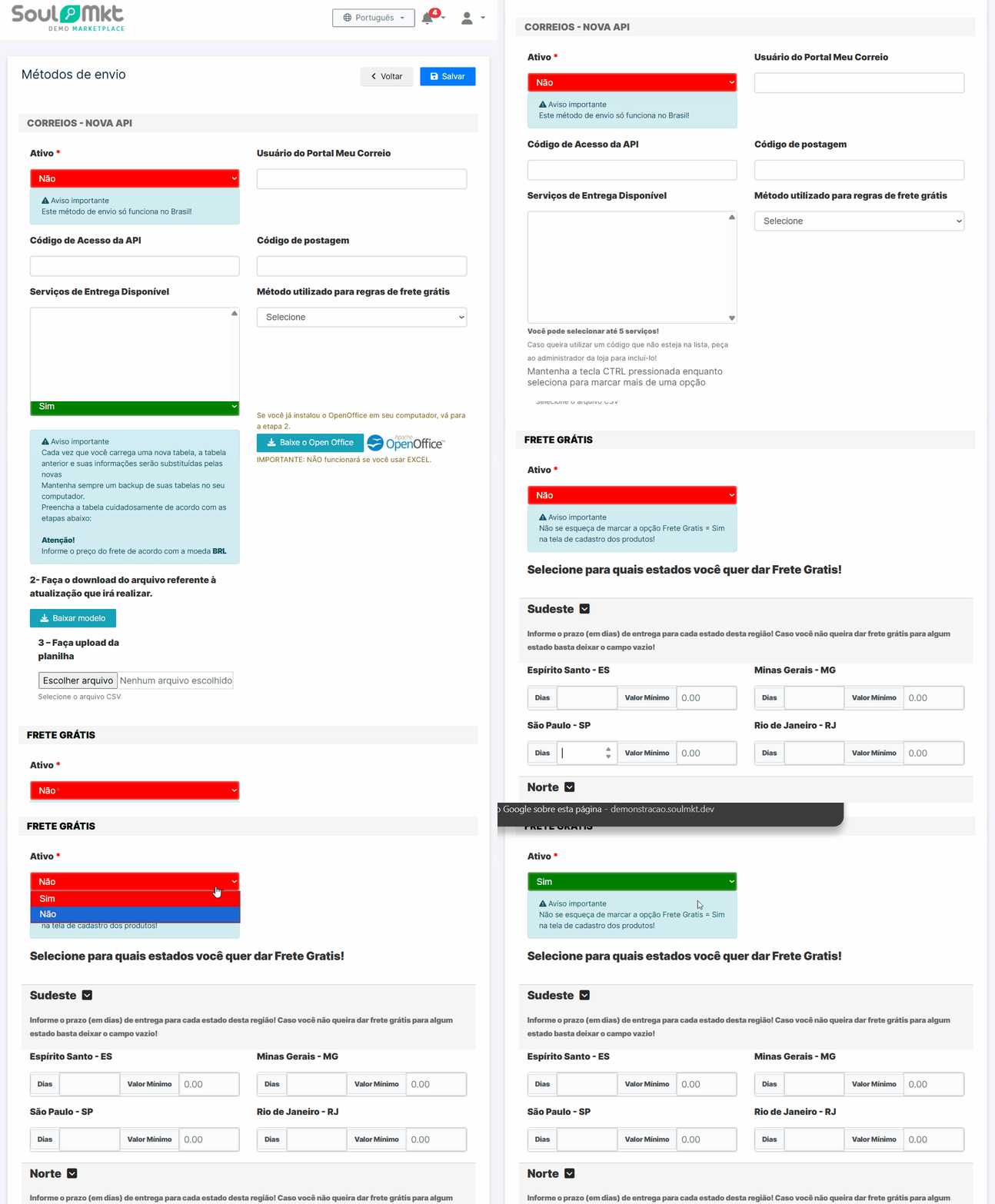
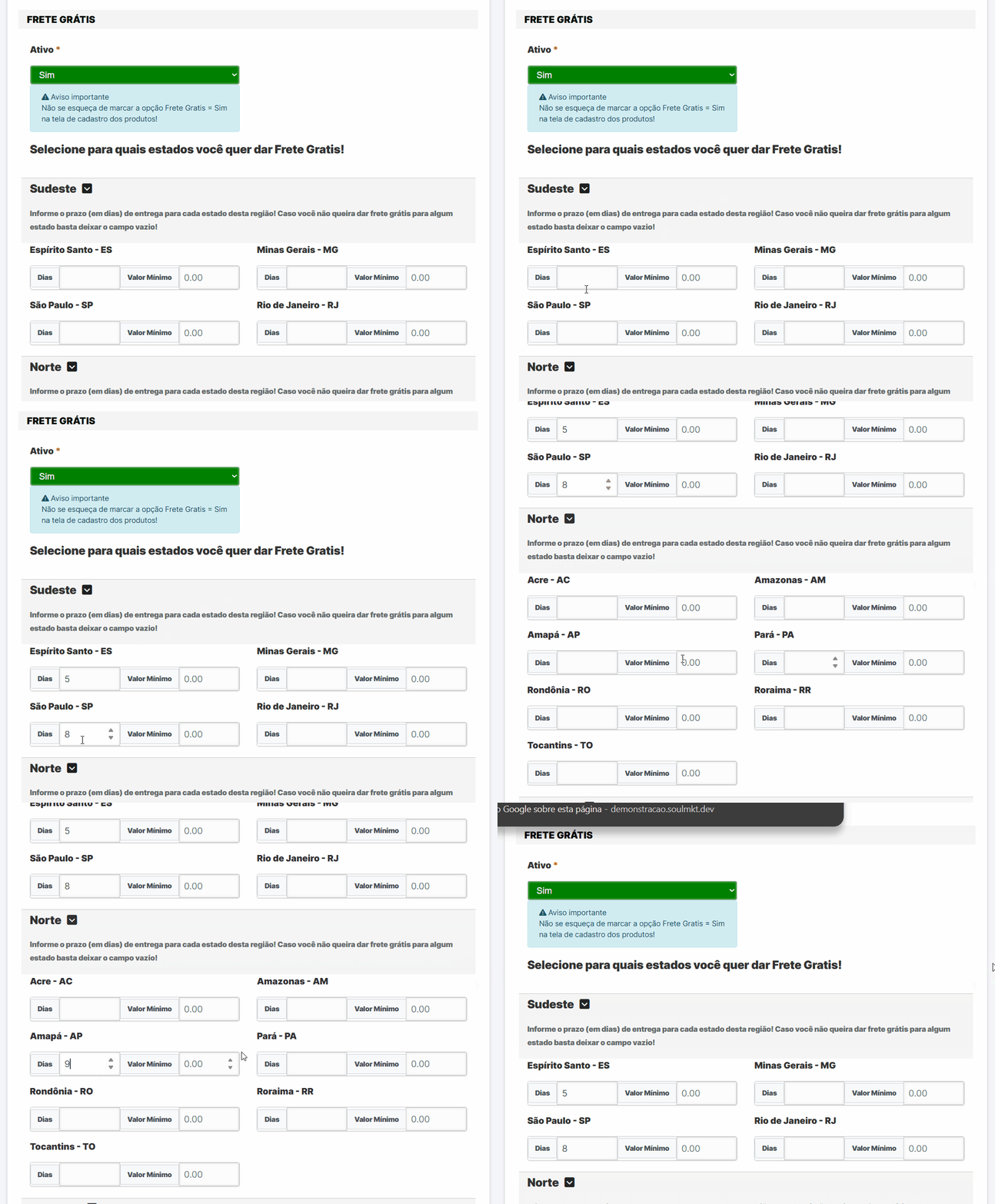
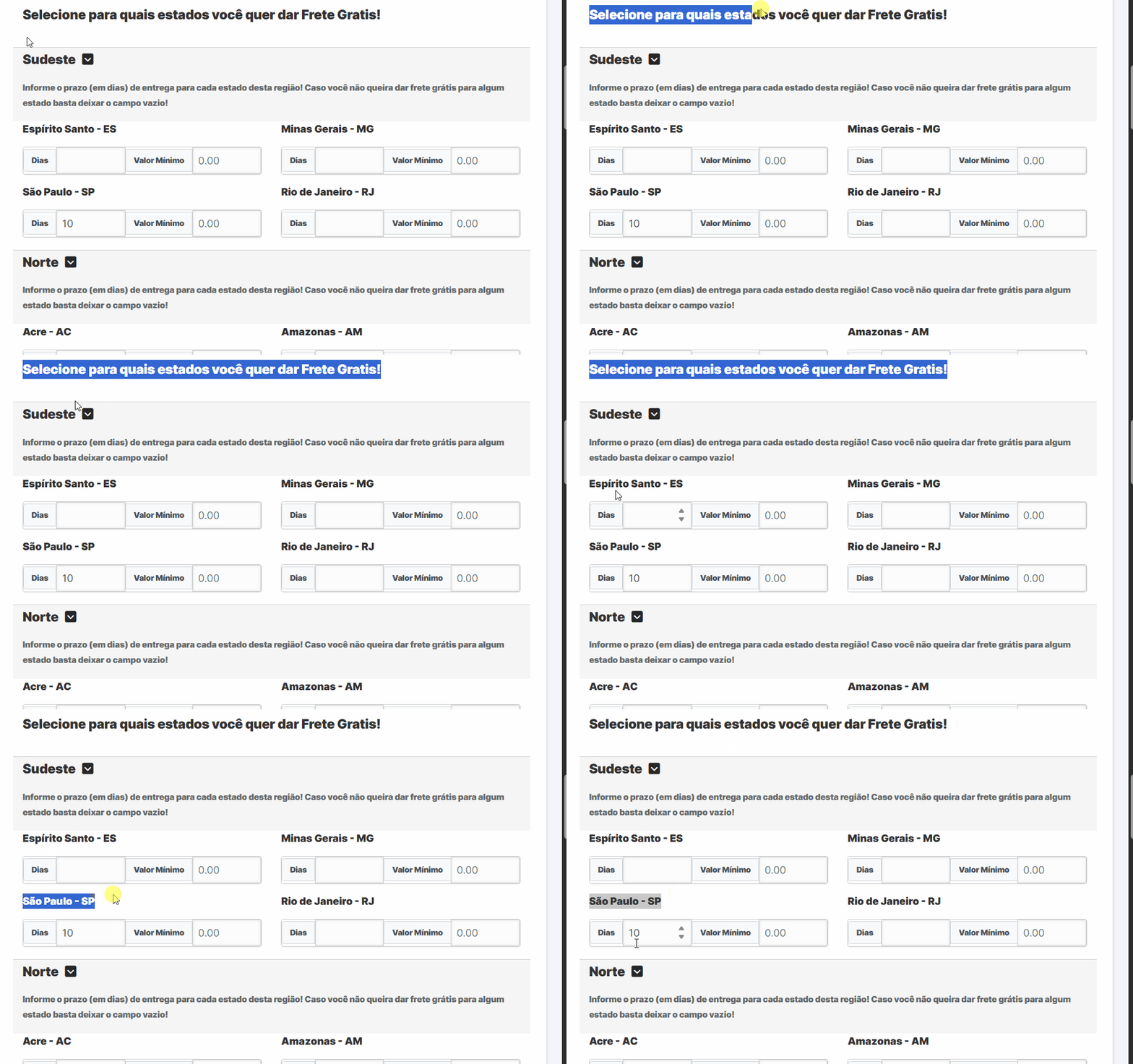
Just below, you will see a list of regions with fields to enter the delivery time (in days) for each state. If you want to offer free shipping to a specific region, navigate to the desired region and enter the average number of days required to complete that delivery. It is important that the number of days provided reflects the average time needed to offer this delivery as free shipping.
If you want to offer free shipping to all regions in Brazil, fill in the fields for all states in all regions. If any state does not have the average delivery time filled in, free shipping will not be offered for that state.
If you are currently offering free shipping to a state and no longer wish to do so, simply remove the average delivery days for that state.
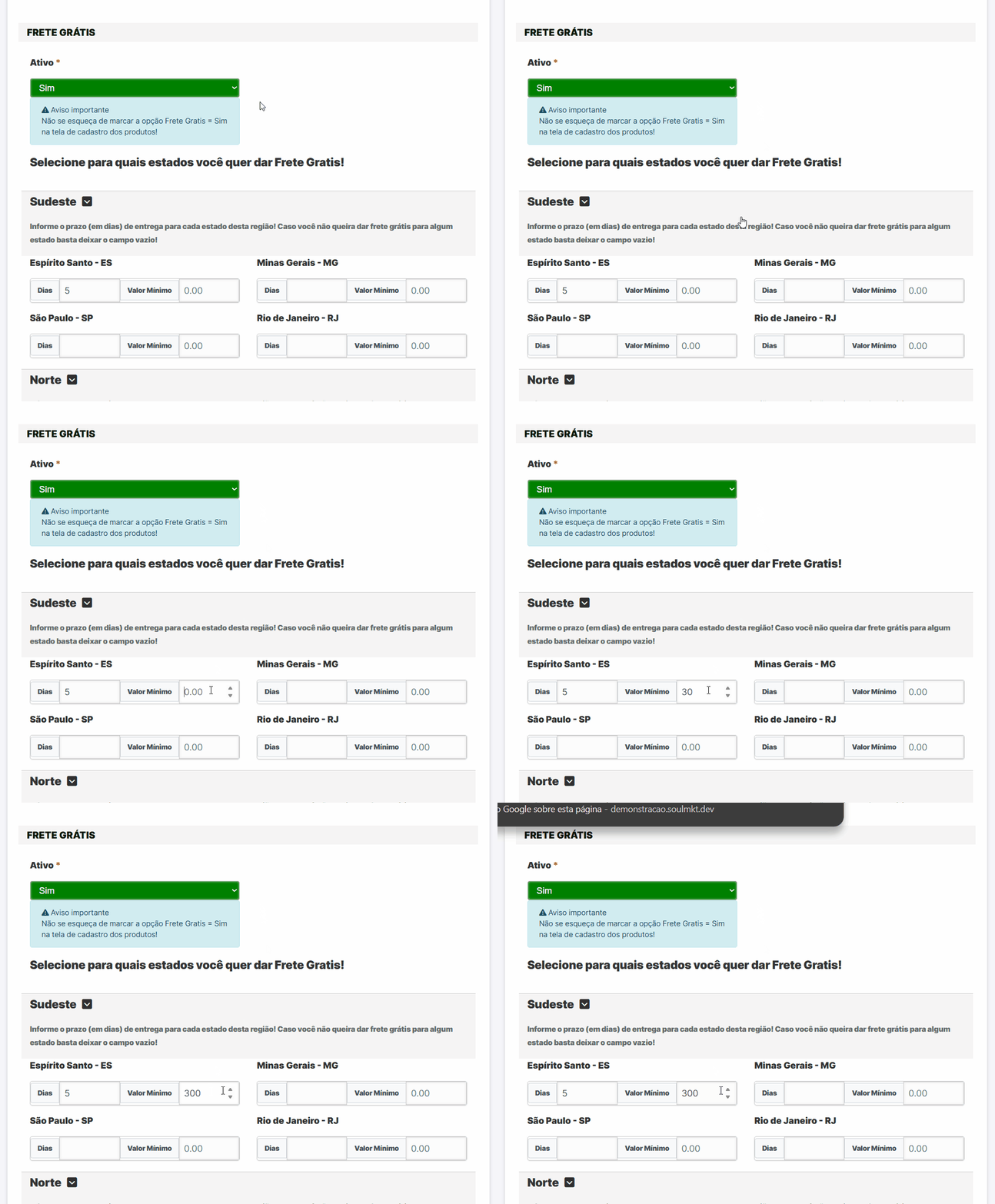
In addition, within the Free Shipping option, there is now a new field called Minimum order value.
This field allows you to define that free shipping for the configured region or state will only be available when the total order amount is equal to or greater than the specified minimum value. If the order does not reach this amount, free shipping will not be applied, even if the region is configured for free shipping.
After completing all the settings — including the average delivery days per state or region and, if applicable, the minimum order value — you must access the products for which you want to offer free shipping to complete the setup.
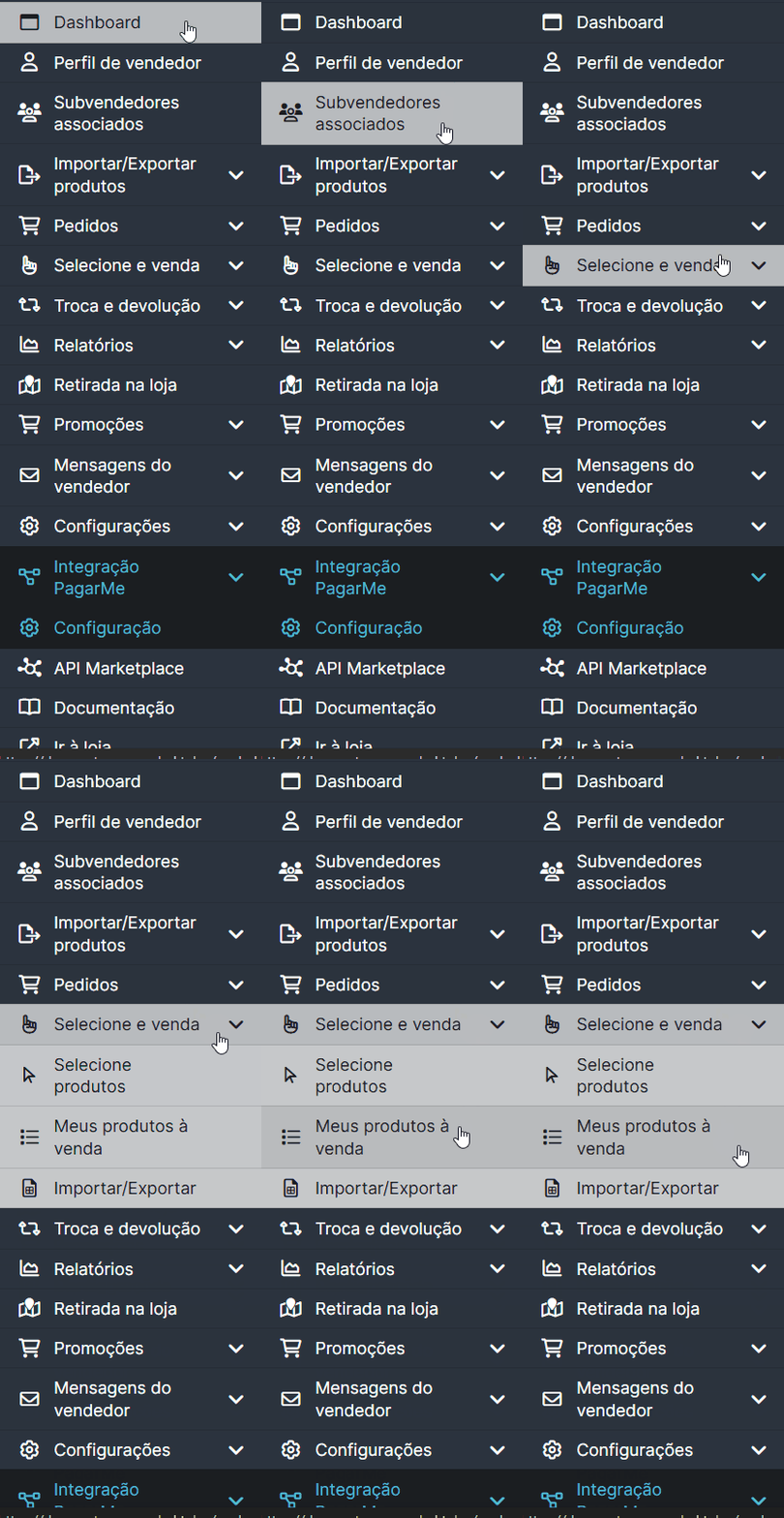
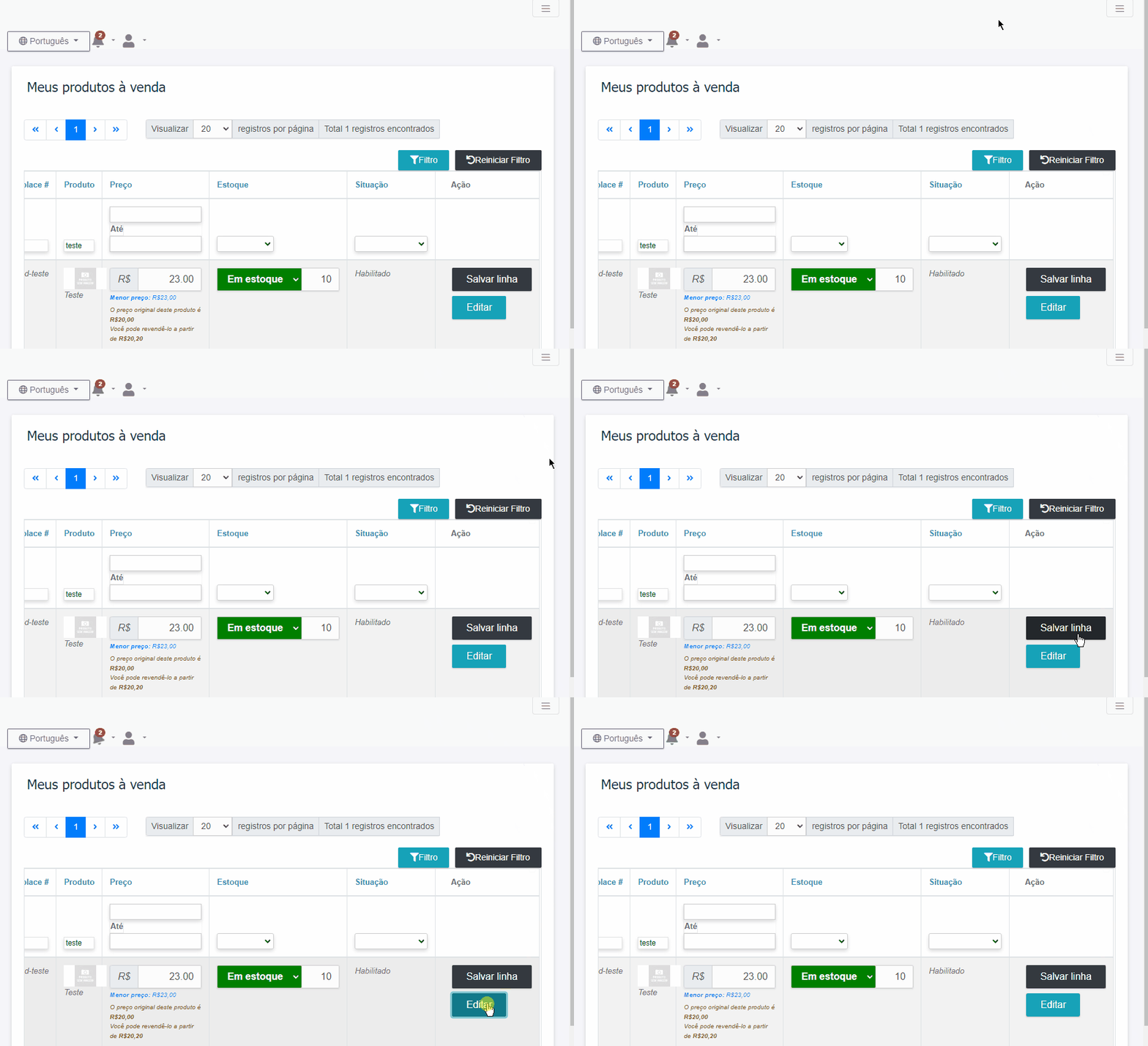
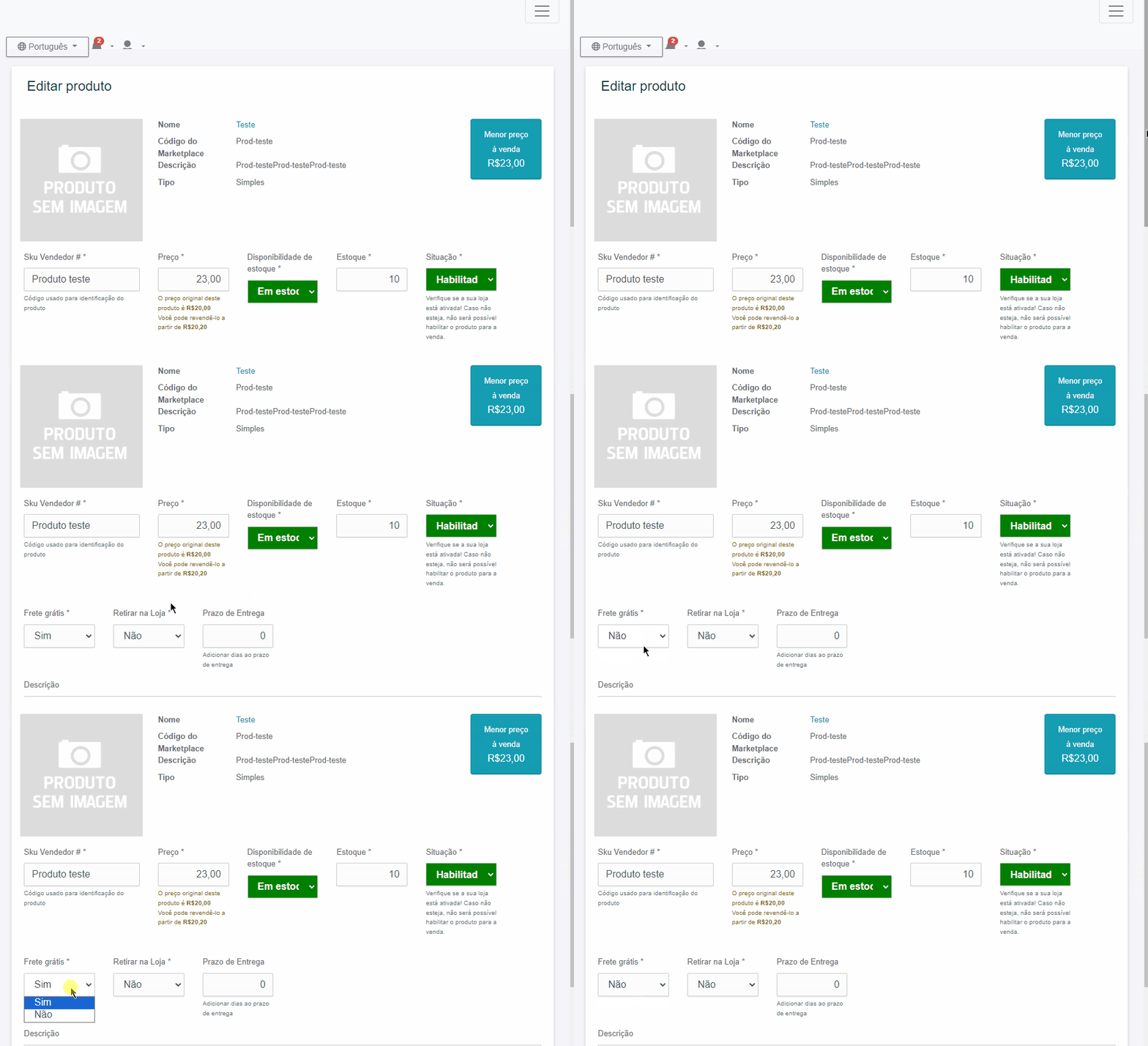
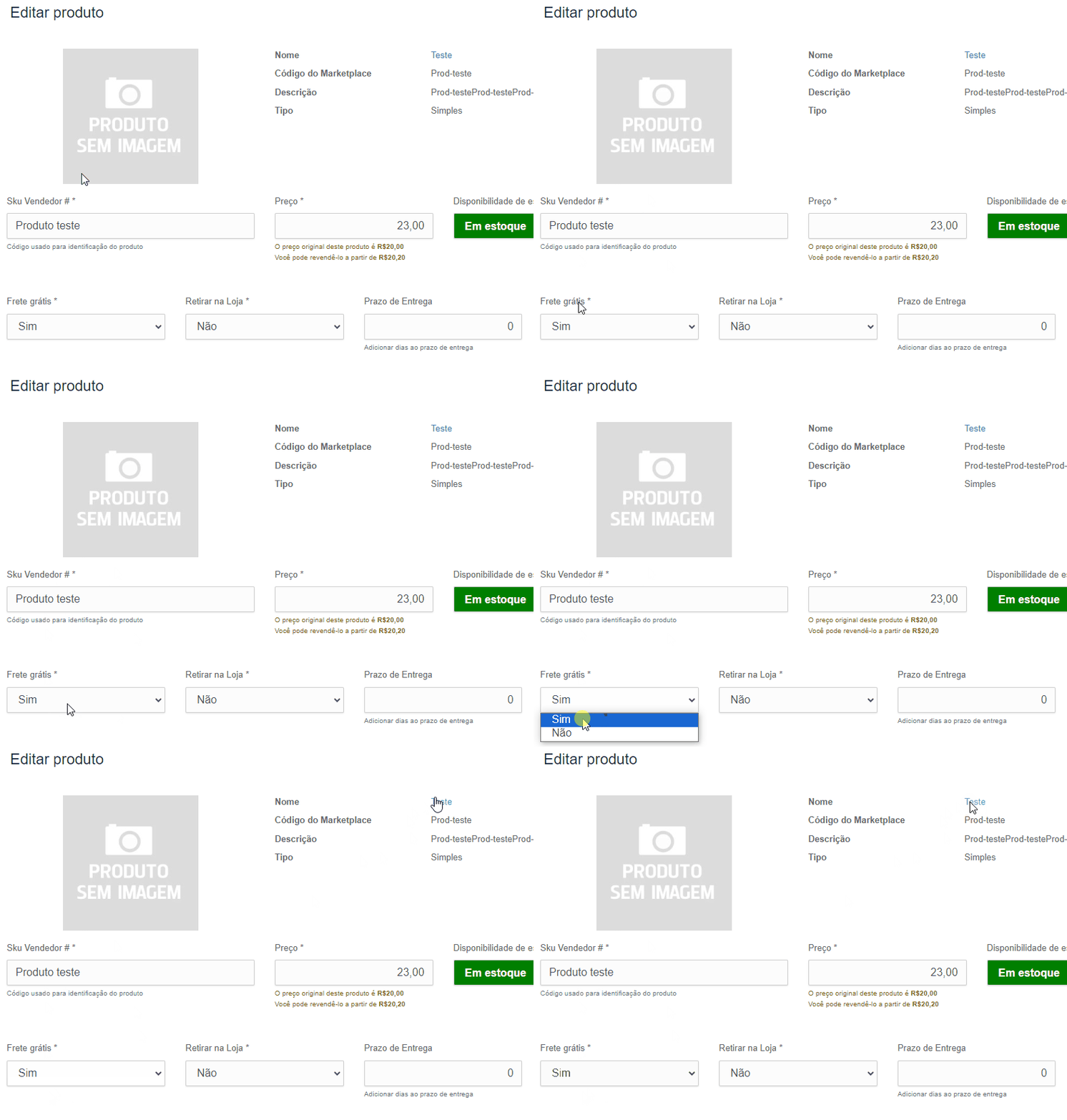
After that, select the product you want to offer free shipping for, go to the “Free Shipping” field, and if the option is set to “No,” change it to “Yes.” This will enable free shipping for that product
If you do not want to offer free shipping for a specific product, access the product, go to the “Free Shipping” field, and if the option is set to “Yes,” change it to “No.” This way, free shipping will no longer be offered for that product.
If you want to change this field by removing or adding free shipping to multiple products at the same time, please read our article “How to change the product free shipping field via spreadsheet.”
Finally, it is important to check whether the configuration is working correctly.
To verify that the free shipping configuration has been set up properly, in your seller dashboard, access a product for which you configured the “Free Shipping” field as “Yes” and click on the product name to open it on the website.
Now, look for yourself in the list of sellers as one of the purchase options and run a shipping simulation. Check whether free shipping appears.
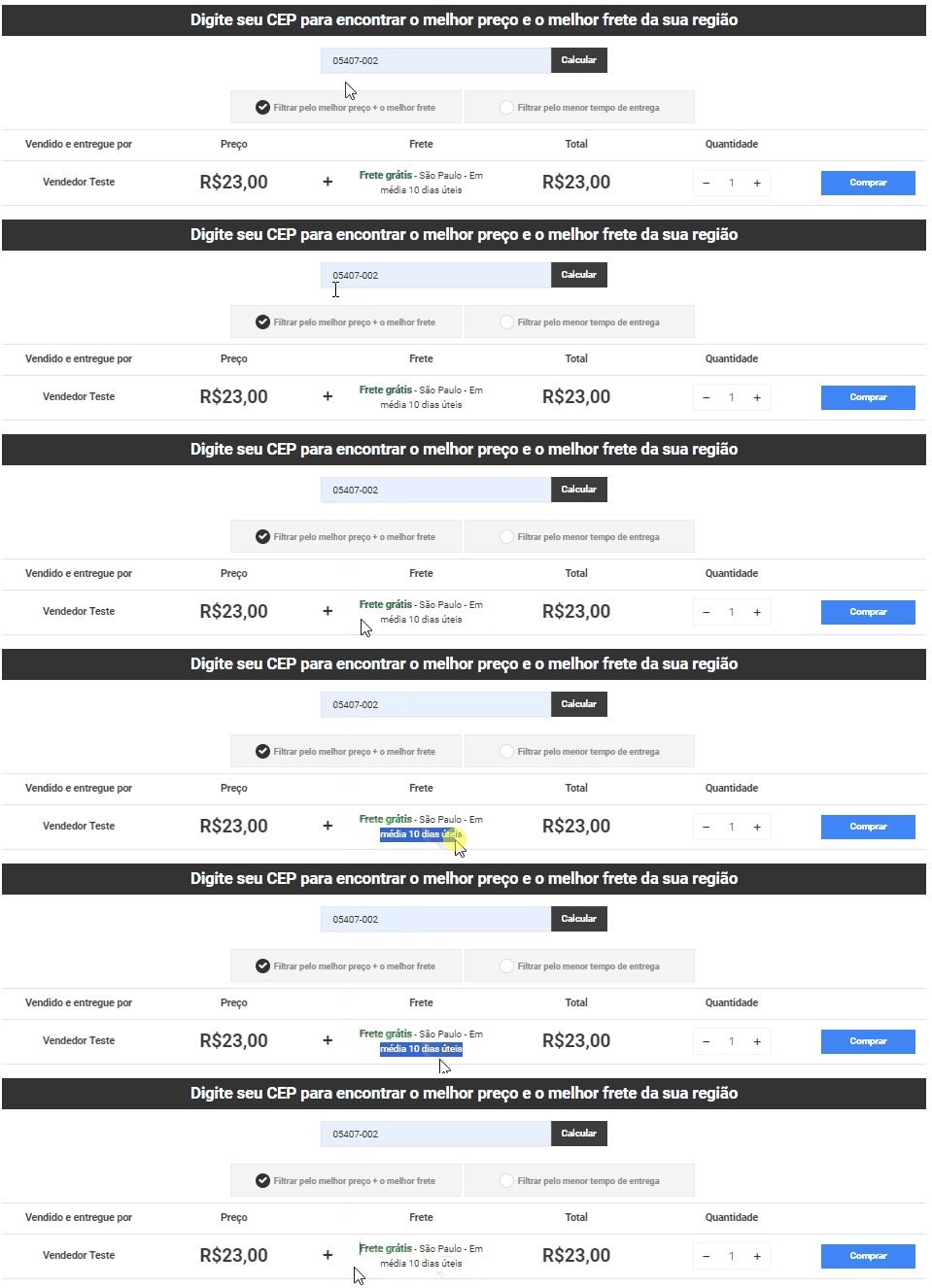
And check whether the delivery timeframe matches the one you configured in the fields for adding the average delivery days by region.
If you have any difficulties or questions, please contact our support team. We are always available to help!