
Table of Contents (TOC) #
- Importance of Setting the Origin Address
- Difference Between Origin Address and Seller Profile Address
- Step-by-Step Guide to Configure the Origin Address
- Additional Days Configuration
- Advanced Delivery Time Settings
- Final Considerations
Importance of Setting the Origin Address #
This documentation aims to guide sellers on how to properly configure the Origin Address on the platform. This address is displayed to customers to indicate where their orders are shipped from. It is for informational purposes only.
We highly recommend configuring the Origin Address before performing any other actions on the platform, such as:
- Selecting products for resale;
- Integrating with Pagar.me;
- Setting up shipping methods.
This setup is essential to accurately communicate the shipping address to customers.
Difference Between Origin Address and Seller Profile Address #
- Origin Address: The location shown to customers, indicating where orders will be shipped from.
- Seller Profile Address: Administrative and registration information, not visible to customers and with no direct impact on order processing.
Step-by-Step Guide to Configure the Origin Address #
Access the Seller Panel: #
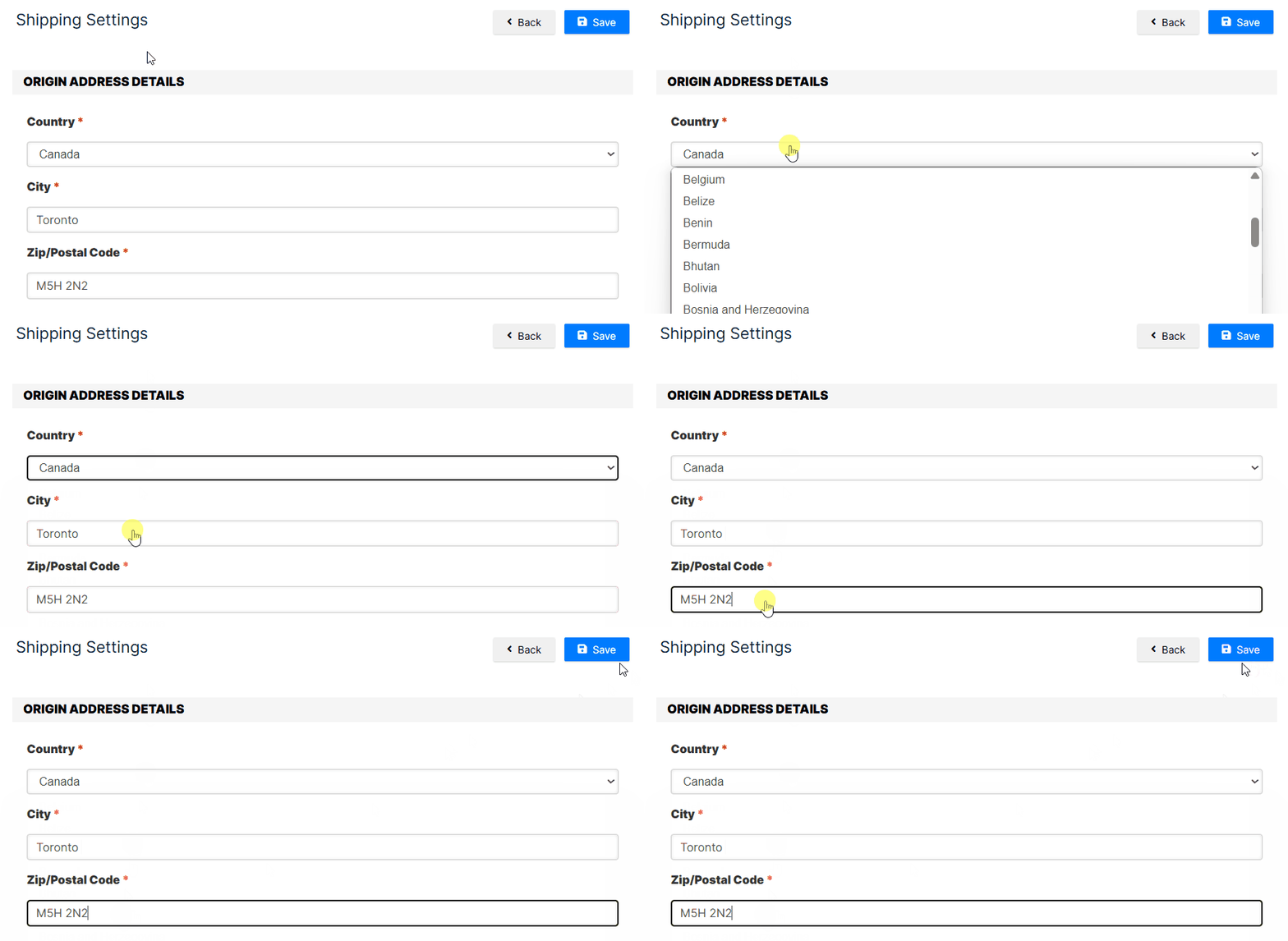
- Go to the Settings section and select Origin Address.
Fill in the Required Fields: #
- Country
- State
- City
- ZIP Code
Important: The Origin Address is displayed to customers for informational purposes only. It does not affect delivery time calculations, which are determined by the configured shipping methods.
Additional Days Configuration #
Even though the Origin Address does not affect delivery time, the Seller Panel allows you to add additional days to the shipping methods. This adjustment applies to all products selected for resale.
How It Works: #
- The additional days are added on top of the shipping method’s default delivery time.
Example: #
- If the selected shipping method offers 5 business days, and you add 10 additional days, the total delivery time displayed to customers will be 15 business days for all products selected for resale.
Attention: The additional days configuration applies globally to all products selected for resale.

Advanced Delivery Time Settings #
Besides adding global additional days, sellers can further refine delivery times with:
- Manual Configuration: Set specific delivery times for individual products directly within the platform.
- Bulk Configuration: Use spreadsheets to update delivery times for multiple products simultaneously.
For detailed instructions on how to set delivery times per product, refer to our dedicated documentation.
Final Considerations #
Properly configuring the Origin Address and delivery times is crucial for maintaining transparency with your customers and ensuring efficient logistics.
Keep this information updated at all times to improve customer trust and optimize order fulfillment.
If you have any questions or need assistance, please do not hesitate to contact our support team. We are always ready to help!