
Tabela de conteúdos (TOC)
This guide aims to demonstrate how to fill in the shipment details for orders placed with the in-store pickup option.
Access the Seller Dashboard #
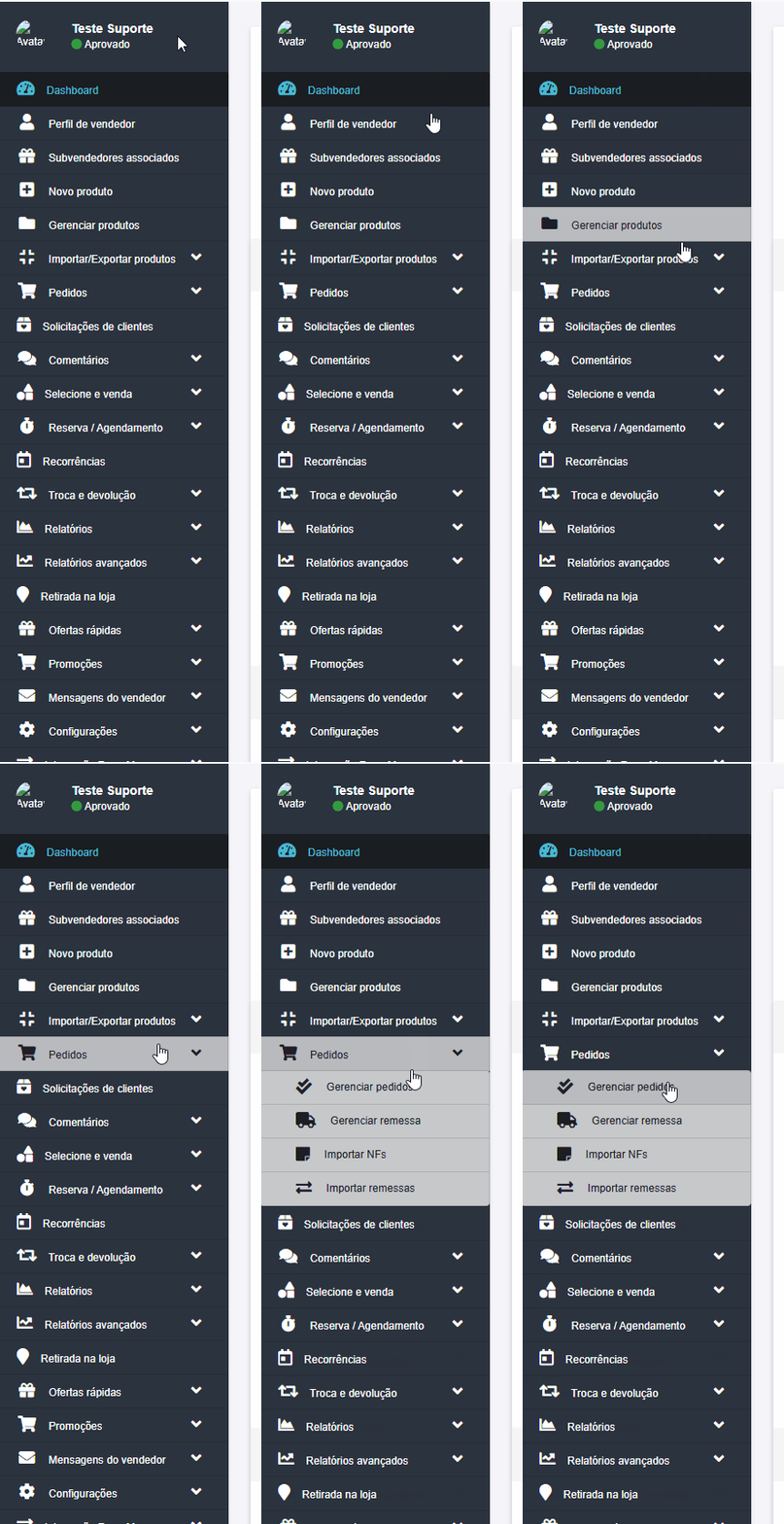
- Log in to your seller dashboard.
- Navigate to the Manage Orders tab.
- Find the order associated with in-store pickup.
Understanding the Need for Shipment Details #
- However, the system still requires the shipment details to be filled in.
- Since the order is picked up directly by the customer, there is no physical shipping or tracking code.
Entering the Shipment Details #
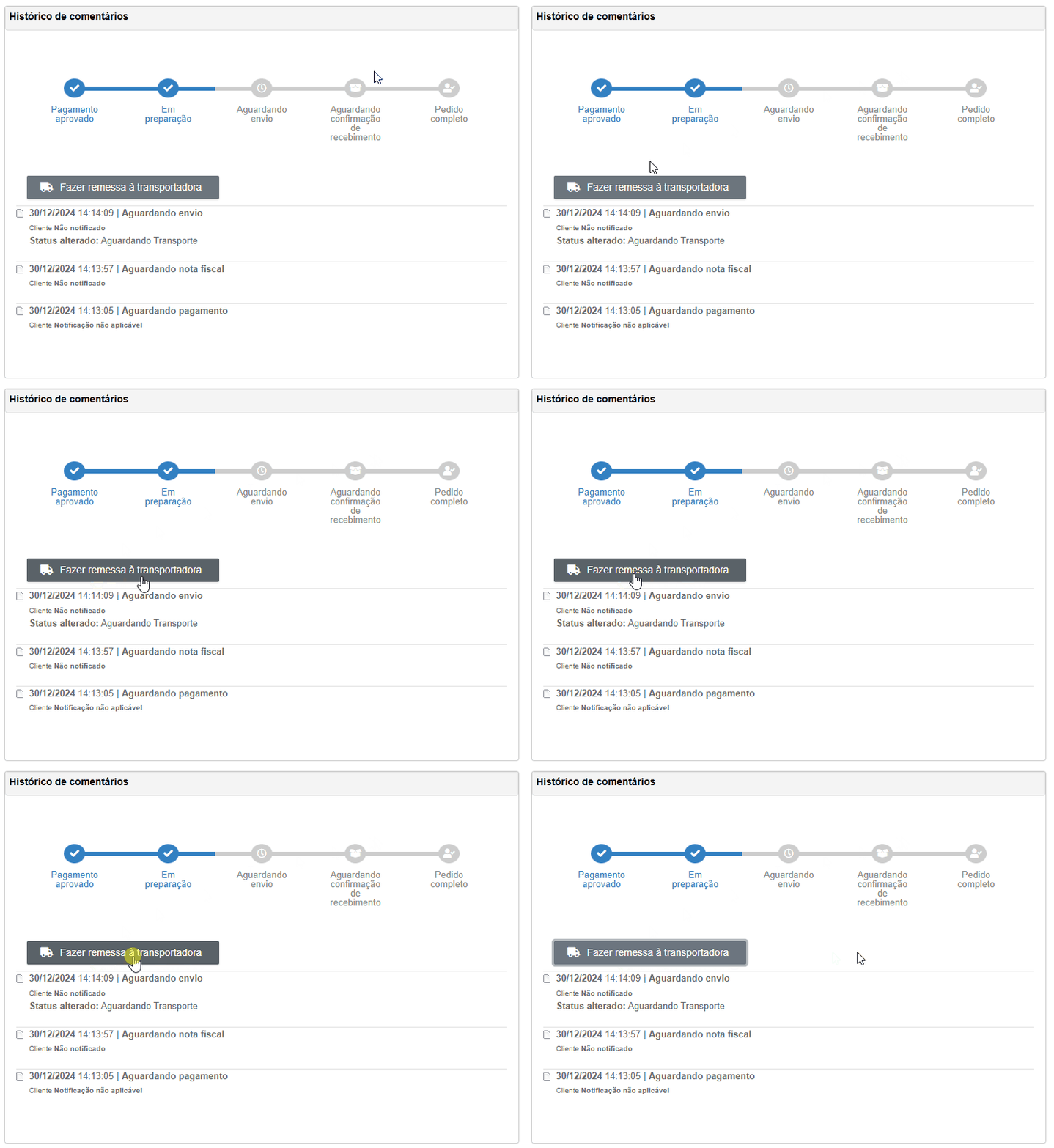
- Access the order details.
- Scroll down to the Make the Shipment section and click to enter the required information.
Filling in the Fields #
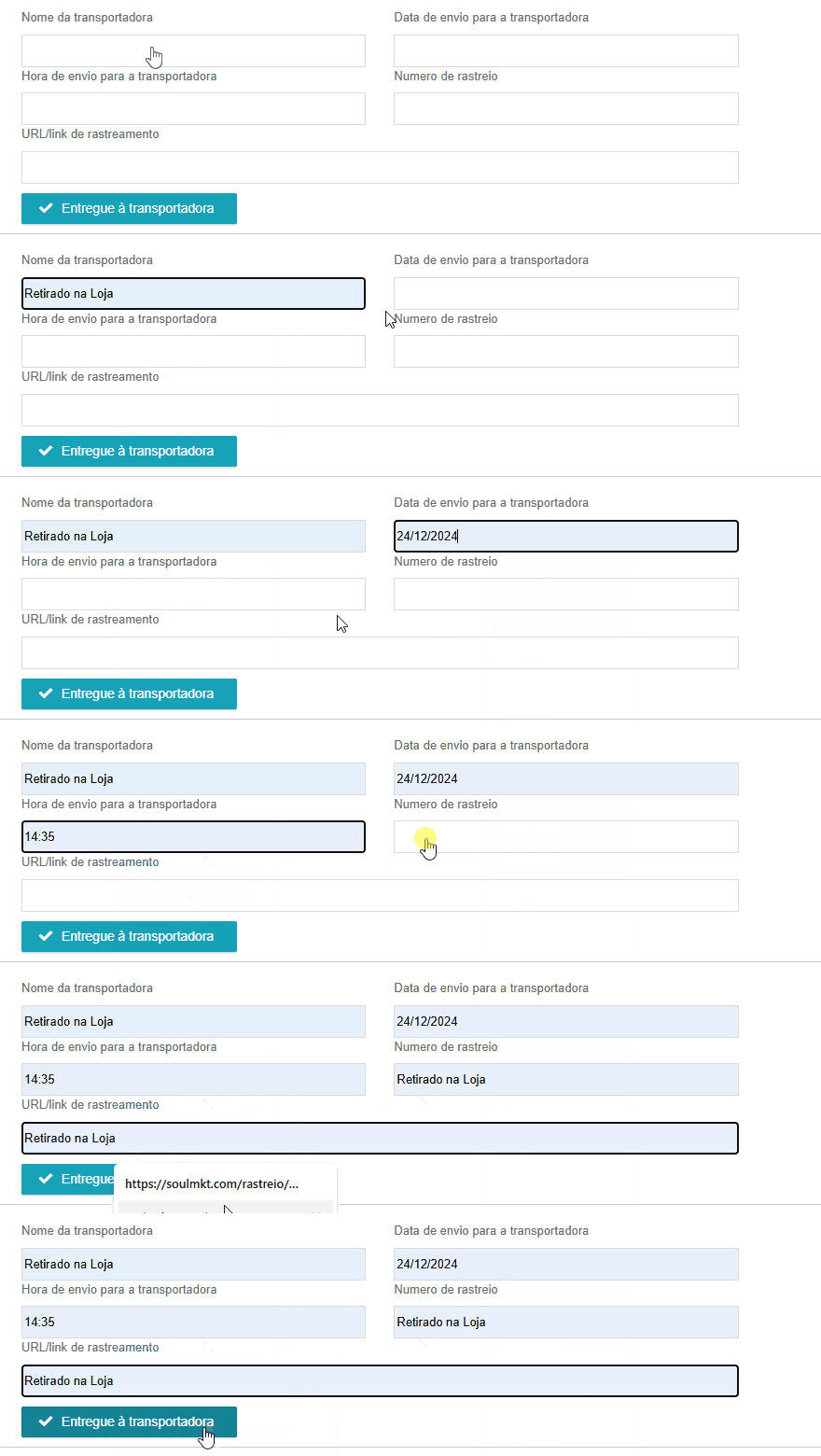
- Carrier Name: Enter a message indicating that the order was picked up in-store (e.g., “Picked Up In-Store”).
- Pickup Date: Enter the date when the customer picked up the order.
- Pickup Time: Enter the time when the customer completed the pickup.
- Tracking Number: Repeat the message indicating that the product was picked up in-store.
- Tracking URL: Enter the same message again (e.g., “Picked Up In-Store”).
Completing the Shipment #
- Click on Carrier Delivery to finalize the record.
- Confirm that the in-store pickup details are visible in the order information.
Customer Confirmation Period #
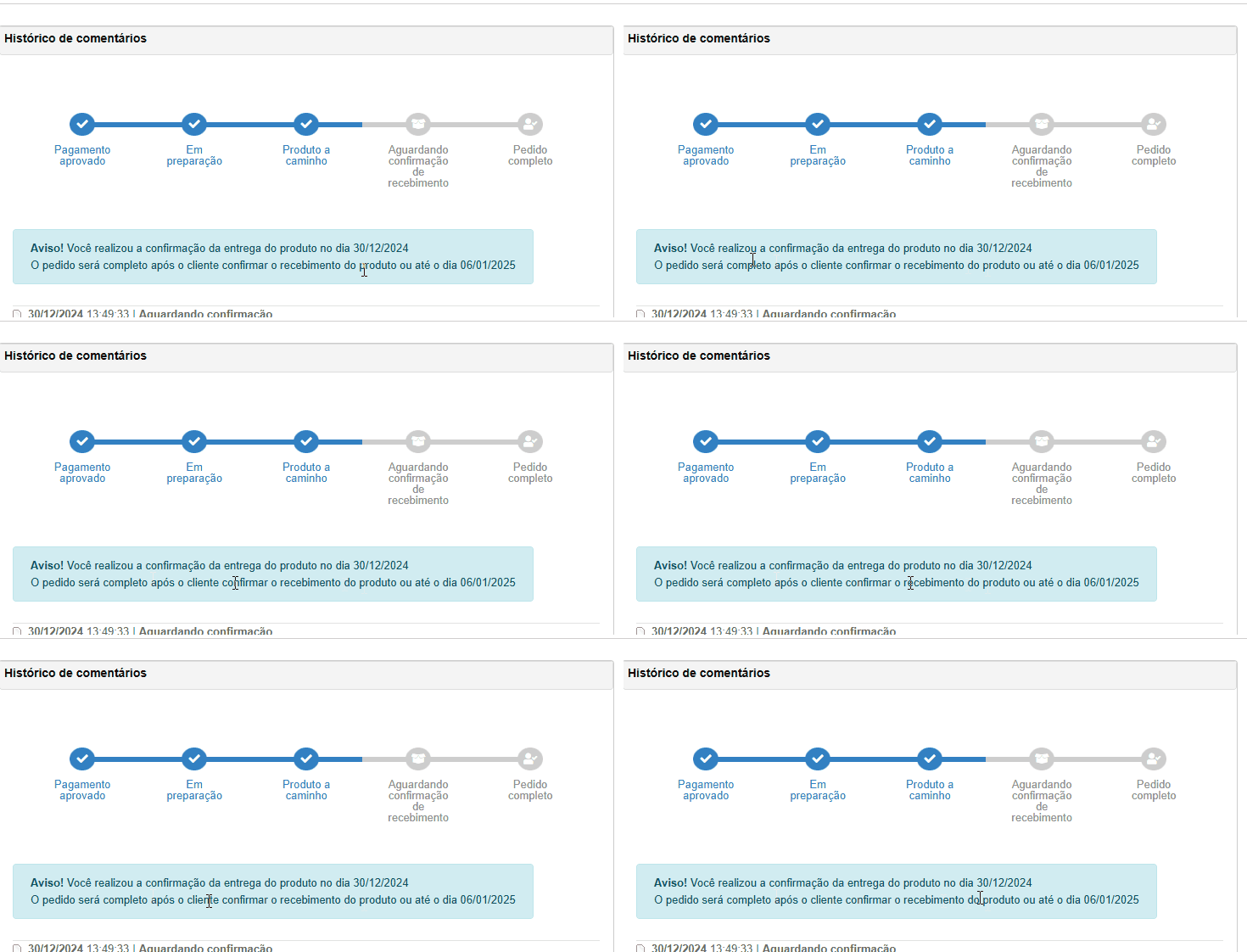
- The customer will have a period of seven days to confirm the pickup or receipt of the order.
- If the customer does not confirm within this period, the order will be automatically updated to the status “Completed”.
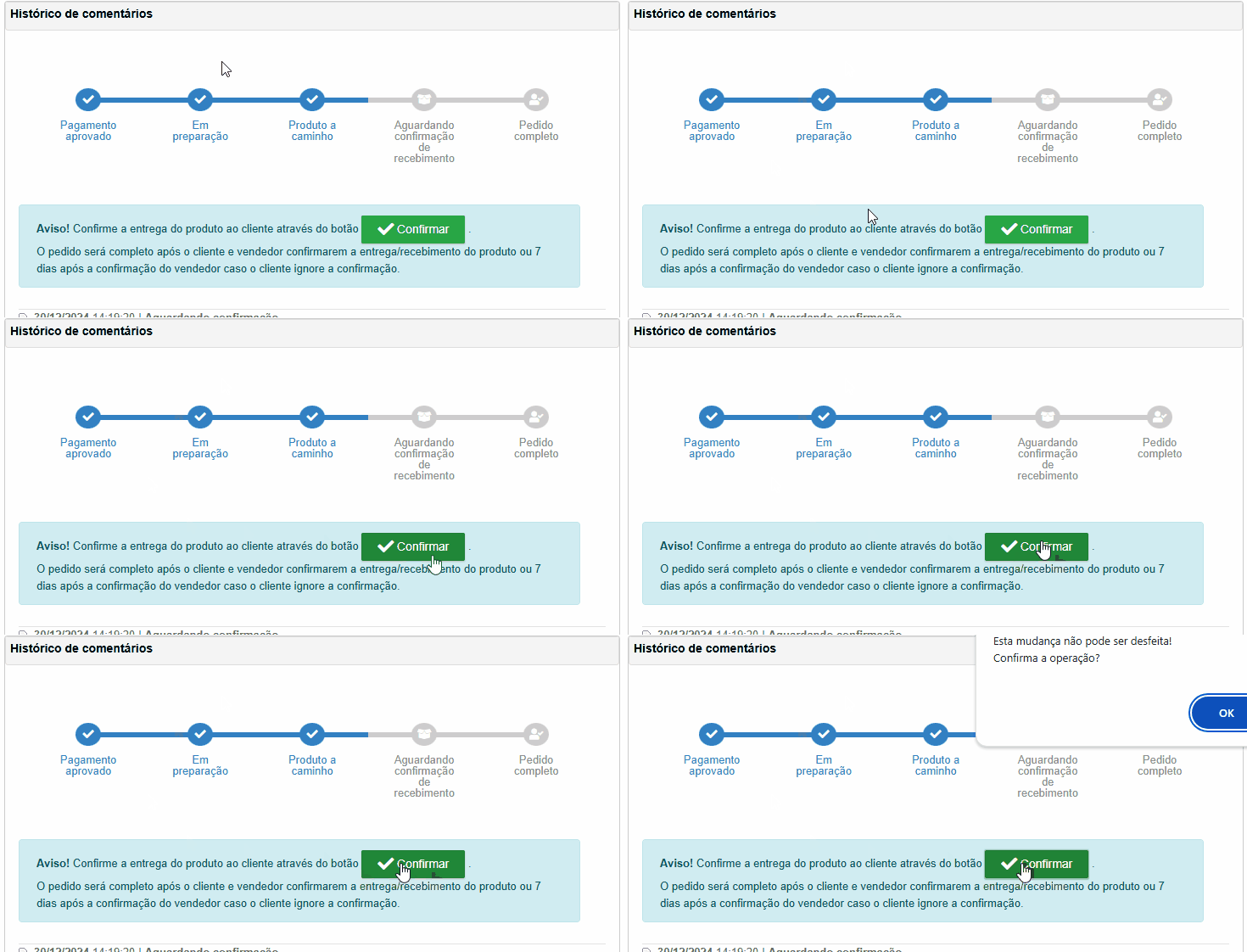
- The customer will have seven days to confirm the pickup or receipt.
- If the customer does not confirm within the given period, the order will be automatically updated to the “Completed” status.
Make sure to follow all the steps correctly to keep the system records up to date. If you have any questions, contact support.