
This documentation guides sellers on how to locate, view, and filter their orders using the “Manage Orders” section of the seller panel.
Accessing the Manage Orders Section #
To access your list of orders:
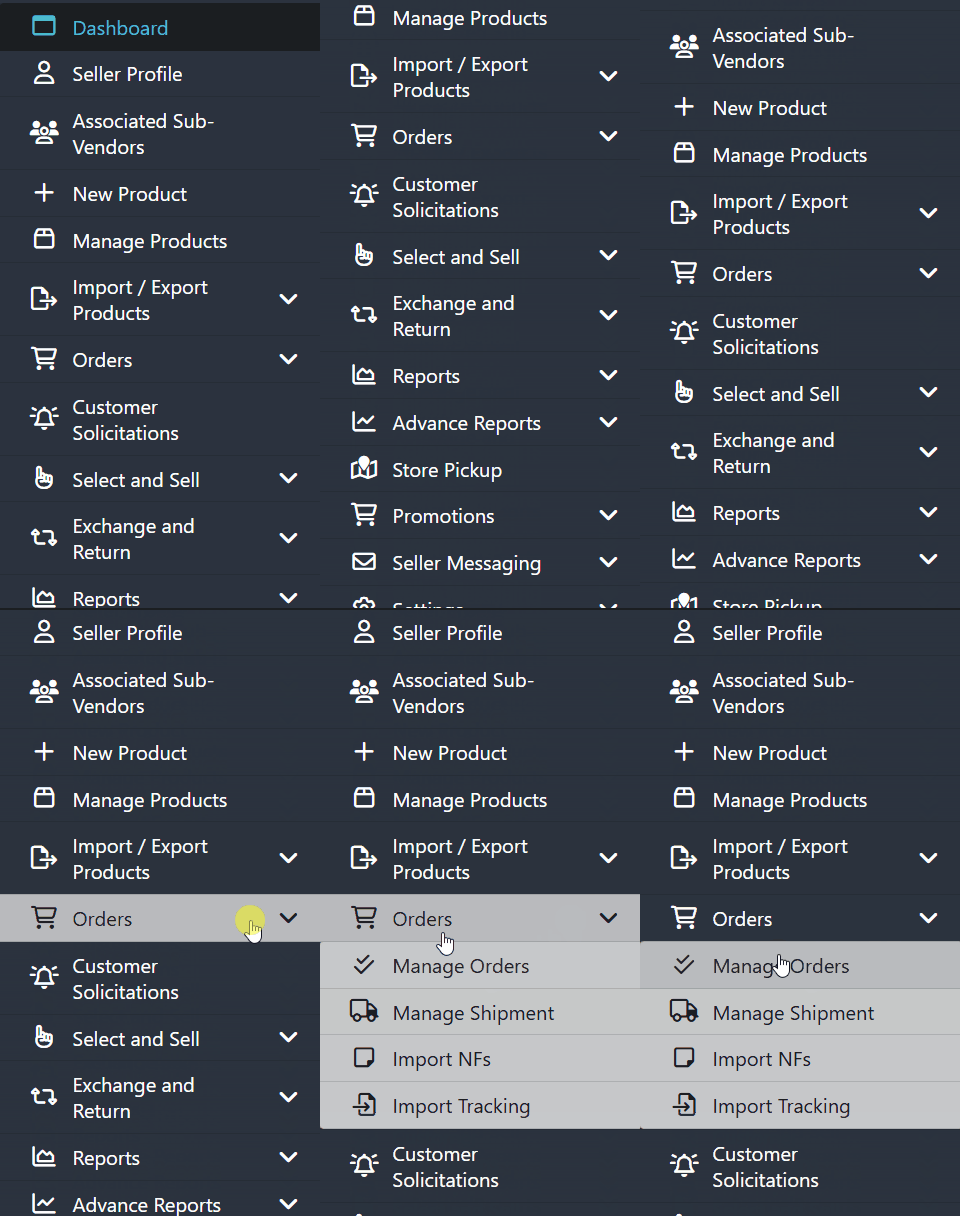
- In the left-side menu, click Orders to expand the options.
- Select Manage Orders.
In this area, all your orders will be displayed, including those:
- Pending payment
- Awaiting invoice
- In shipping
- Delivered
Understanding the Orders List #
Each line in the list represents one order and includes the following information:
- Order Number – Unique ID of the order.
- Order Date – The date the purchase was completed.
- Customer Name – The buyer’s name.
- Amount – Total value of the purchase.
- Commission – Fee charged by the marketplace.
- Net Earnings – Amount the seller receives after commission deduction
(does not include card processing fees). - Status – Current status of the order (pending payment, shipped, delivered, etc.).
- View – Button that opens the full order details.
⚠️ Important: Net earnings do not account for card transaction fees. Always verify financial details with your marketplace administrator.
Viewing Order Details #
To open an order:
- Click the View button on the order line,
or - Click anywhere on the row to open the detail page.
A complementary documentation is available explaining every element displayed in the order details page.
Filtering Orders #
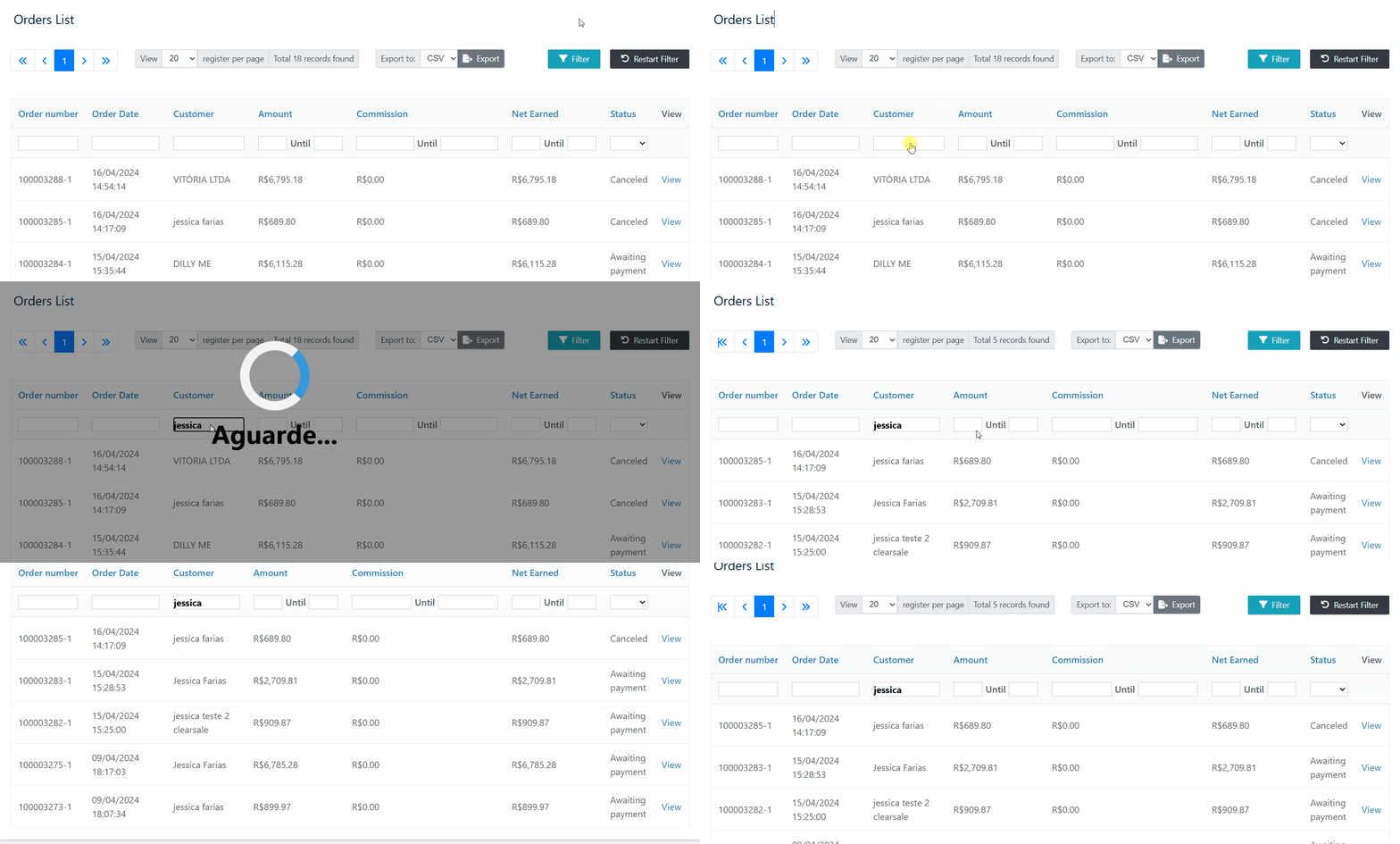
You can refine your search using the filter tools available at the top of the list.
Filters include:
- Order ID
- Date
- Customer Name
- Amount (range supported, e.g., $100 to $200)
- Status (pending, shipped, complete, etc.)
Before applying new filters:
- Click Reset Filter to clear previous searches.
- Enter your filter criteria.
- Click Filter to apply.
To return to the full order list, click Reset Filter again.
Navigating Between Order Pages #
At both the top and bottom of the screen:
- Use the single arrows to move to the next or previous page.
- Use the double arrows to jump to the first or last page.
You can also change the number of orders displayed per page.
The system displays the total number of registered orders.
Exporting the Order List #
- Click Export to generate a CSV file.
The exported file will contain the exact columns shown on screen:
- Order Number
- Order Date
- Customer
- Amount
- Commission
- Net Earnings
- Status
This export is ideal for financial review, analysis, or external reporting.
Important Recommendations #
- Always reset filters before starting a new search.
- Use filters to quickly locate specific orders.
- Refer to the order status documentation to better understand order progress.
Need Help? #
If you have additional questions or difficulties, contact the marketplace administrator to open a support ticket with our team.
We are always available to assist you!