
In the seller dashboard, navigate to the “Select and Sell” tab, then select the “Select Products” sub-tab.
Use the search bar to find the product you want to list for sale.
(In this example, we’ll use the product TestModeServer.)
- Click the Sell this Product option.
- Enter the reseller SKU (e.g.,
test-multi-seller-reseller). - Make sure the product is in stock, and set the available quantity (e.g., 100 units).
- Check with the Marketplace Administrator for applicable pricing rules.
(In this example, the price must be between 8 and 12.) - Fill in the required fields for weight, height, length, and width of the product.
- If you want to offer free shipping, activate the corresponding option.
Don’t forget to consult our dedicated documentation for configuring free shipping. - If you wish to offer in-store pickup, enable the “In-Store Pickup” option.
Please refer to our dedicated documentation for setting up this feature.
(Other configuration options will be covered in separate documentation. For further details, please contact the Marketplace Administrator and request the additional materials.)
Once all required information has been completed, click Save.
After saving, the reseller will appear as one of the available purchase options on the product page, allowing the customer to choose from whom to buy.
Verify the Product #
To confirm that you are selling the selected product, go to the “My Products for Sale” tab in the side menu.
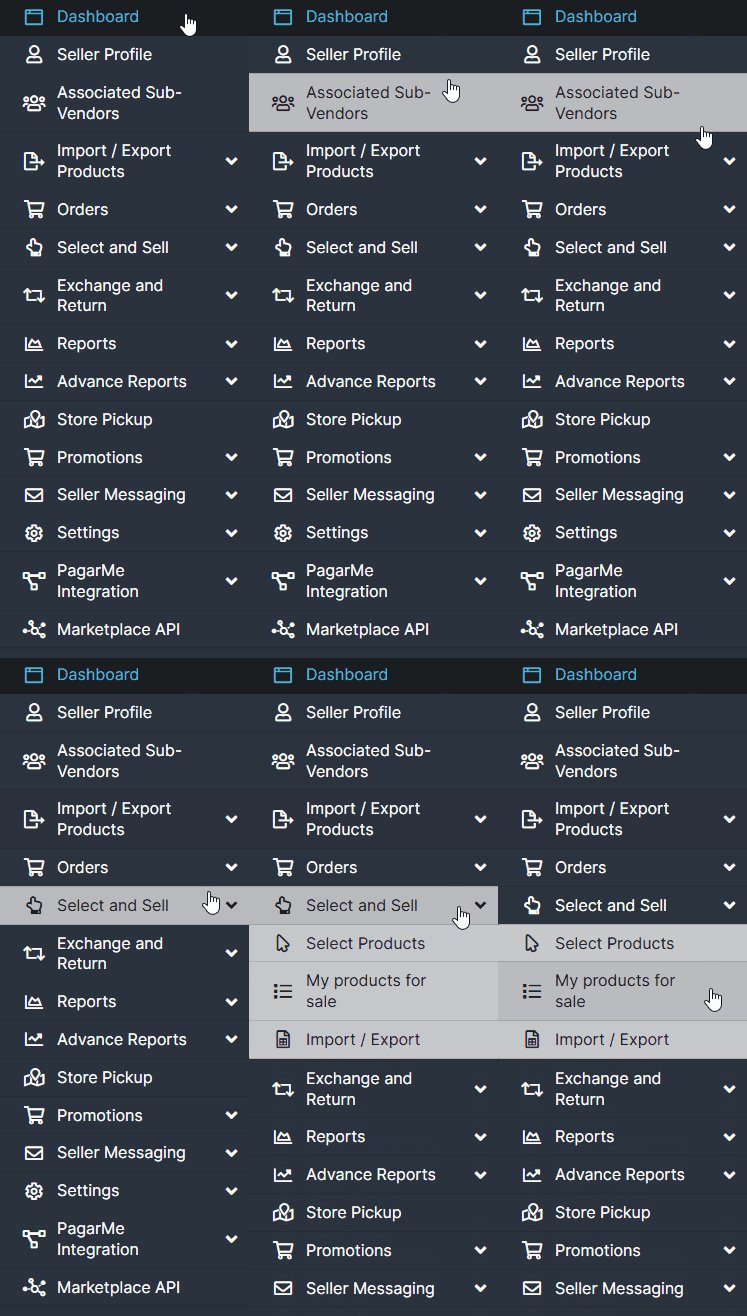
Find the Product
Locate the product either by name or by the SKU you entered (e.g., test-multi-seller-reseller).
Check Your Visibility #
To ensure that you appear as one of the purchase options, visit the product page on the storefront.
If all steps were completed correctly, you will be displayed as one of the available sellers for that product.
If you experience any issues or have questions, please don’t hesitate to contact our support team. We’re always here to help!