
How to Configure the “In-Store Pickup” Shipping Method
The “In-Store Pickup” shipping method is ideal for sellers who want to offer customers the ability to pick up their orders on the same day or in urgent situations. This option requires configuring the store’s pickup address and business hours to ensure customers have the necessary information about when and where to collect their purchases. This guide will show you how to correctly set up the “In-Store Pickup” method.
Step 1 – Accessing Shipping Settings
Log in to your seller account and navigate through the side menu to find the “Settings” option. Click on it and select “Shipping Methods.”
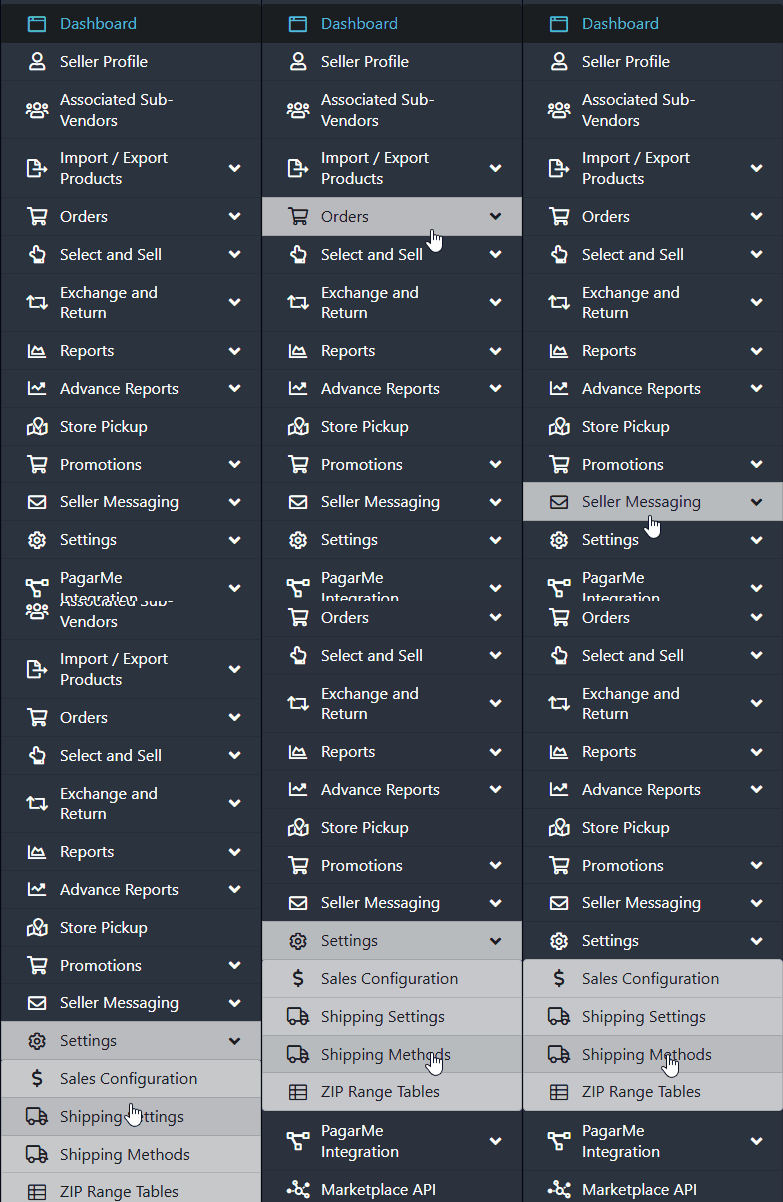
Once the page loads, scroll down until you find the configuration for the shipping method “IN-STORE PICKUP.”
If the option is currently set to “No,” click the “Active” toggle and switch it to “Yes.”
Then, select the Allowed Country from the dropdown next to it.
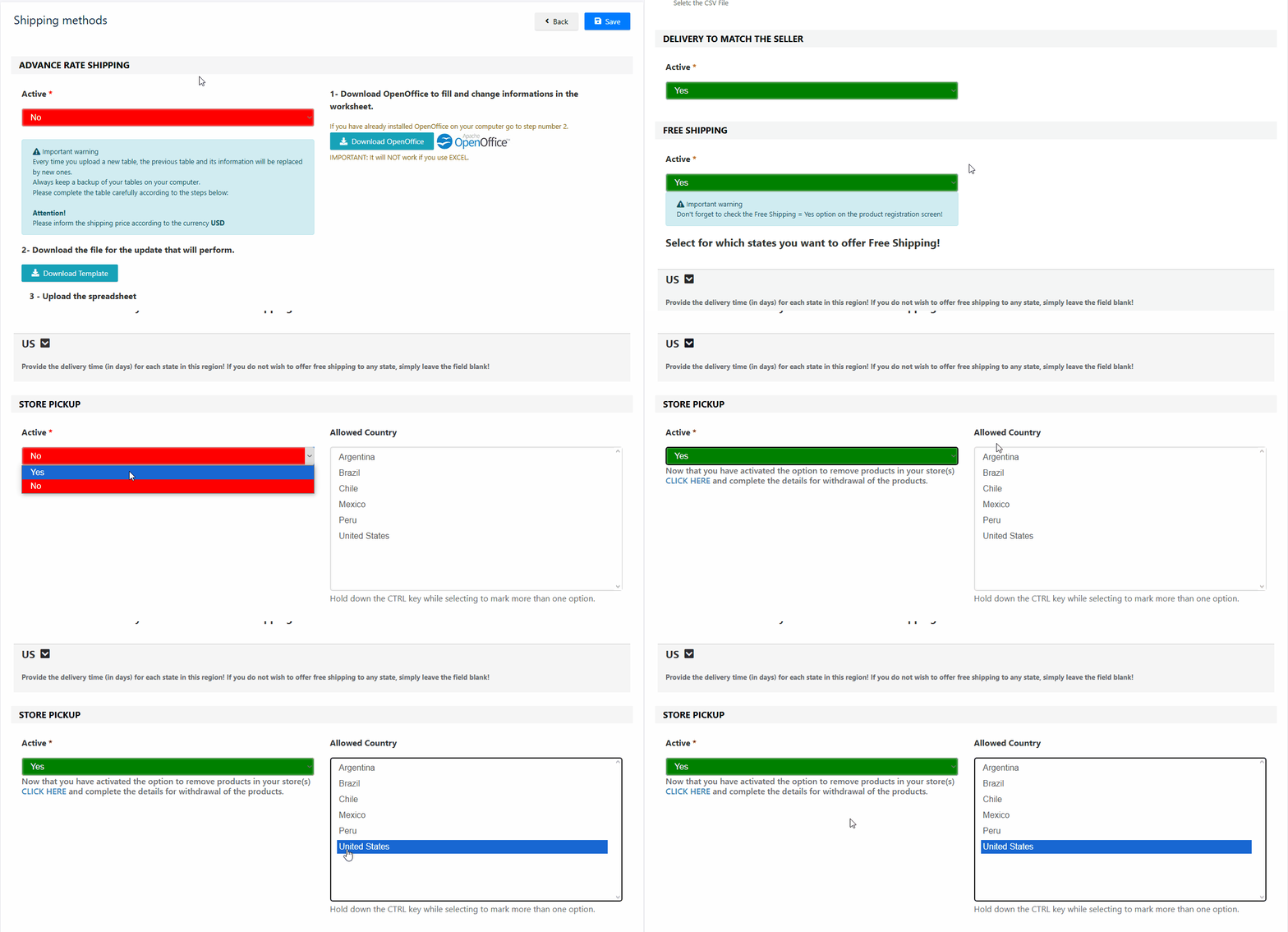
Don’t forget to click “Save.”
Step 2 – Entering Store Address and Hours
After saving, refresh the page and return to the “IN-STORE PICKUP” section. Now that the option is enabled, you’ll see a notice below the “Active” button prompting you to fill in the pickup address. You can click the “CLICK HERE” button in the notice.
Alternatively, you can go to the side menu and click on “In-Store Pickup.” Both paths will lead to the same configuration page.
On the “Manage In-Store Pickup” page, click the green button in the top right corner to add a pickup address.
Step 3 – Fill in Store Information
Two configuration sections will be displayed:

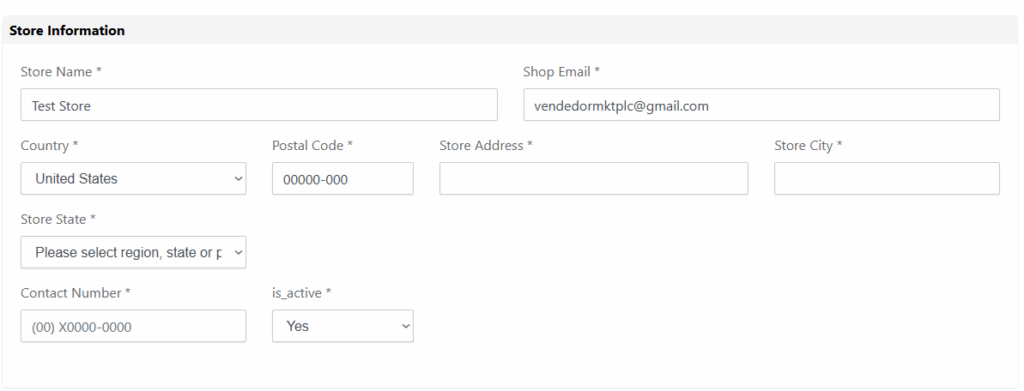
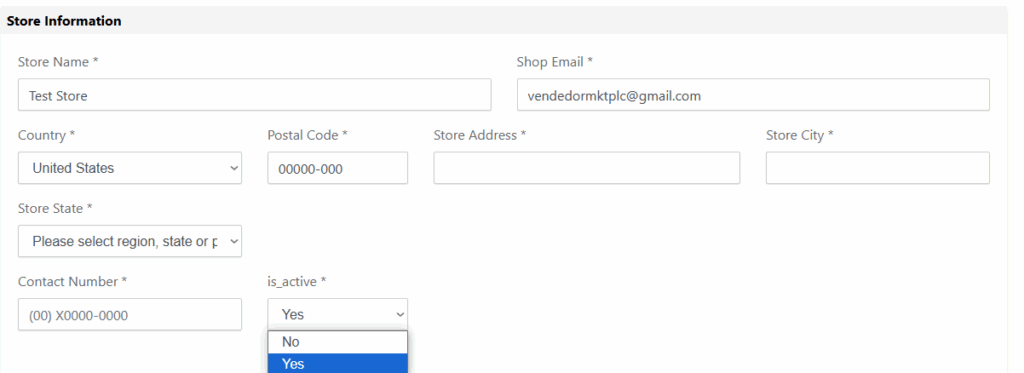
- Store Information:
Enter the address of the store where customers can pick up their orders. Make sure all required fields are completed and include any necessary details in the address field.
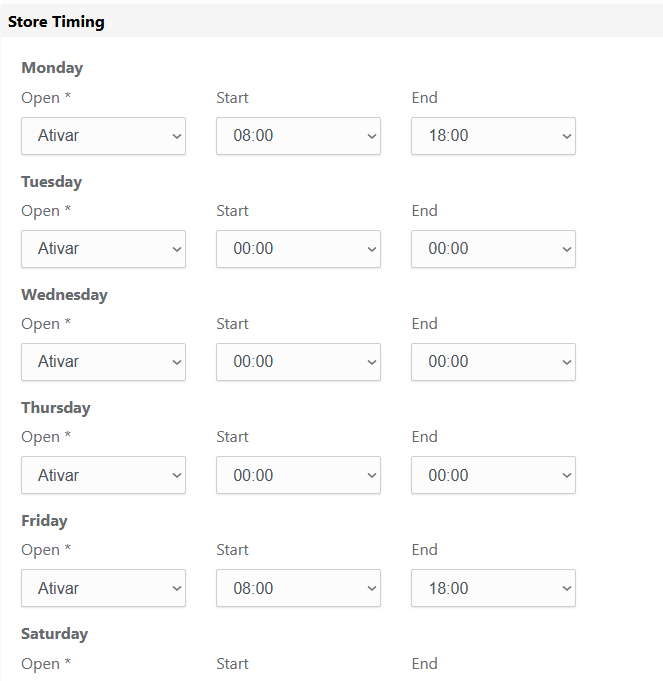
- Business Hours:
Indicate the days of the week and time ranges during which pickup is available, so customers know when they can collect their products.
Once both sections are completed, click the blue “Save Pickup Location” button in the top right corner to save your settings.
The saved location will then be listed and can be edited at any time.
Important:
To make the “In-Store Pickup” method available at checkout, the corresponding product must have the “In-Store Pickup” option set to “YES.”
If the product is not properly configured, this shipping method will not appear for selection.
After saving the change to “YES” on the product, perform a shipping cost calculation using a ZIP code to verify that the pickup option is available.
Need Help?
If you have any questions or difficulties, ask your Marketplace administrator to open a ticket in our support panel. Our team is ready to assist you!