
Accessing the Login Page #
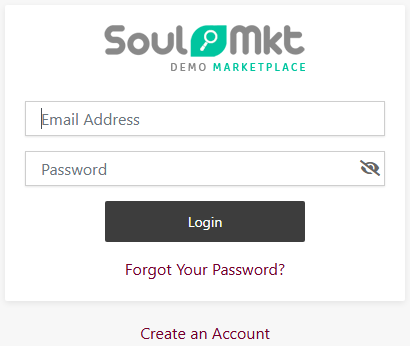
Start by opening the login page of the platform.
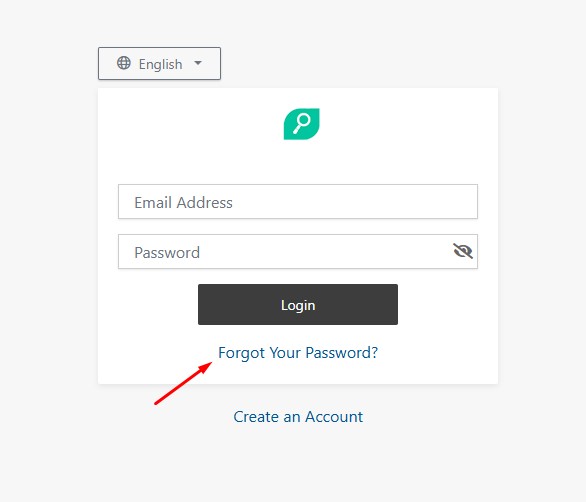
Clicking “Forgot your password?”
#On the login screen, locate and click the “Forgot your password?” link.
Entering Your Email
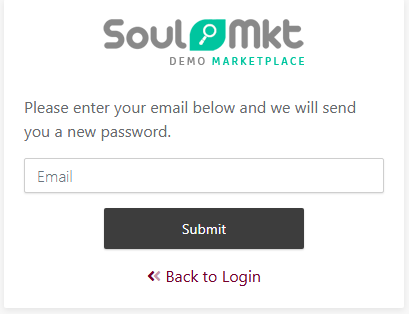
#After clicking the link, you will be prompted to enter the email address associated with your account on the platform.
Enter your commonly used email and click “Send”.
Receiving the Reset Email
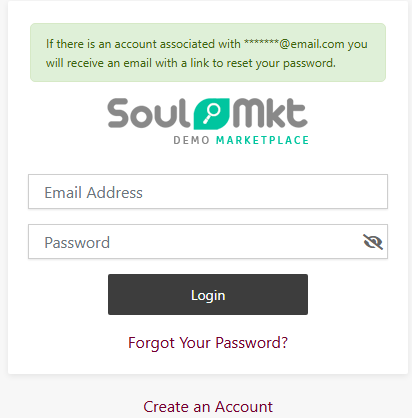
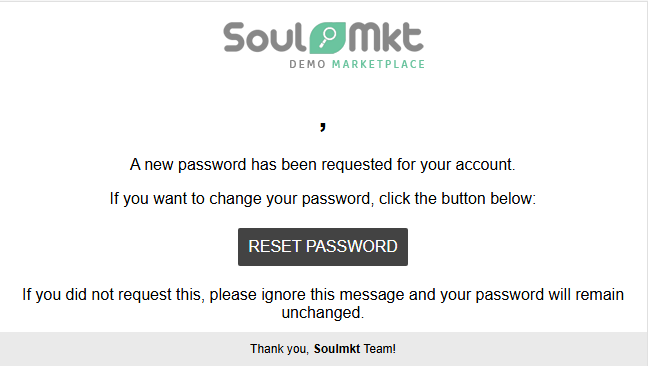
#You will receive an email containing a link to reset your password.
Check your inbox and look for an email sent by the platform confirming the reset link.
Clicking the Reset Link
#In the email, click the password reset link.
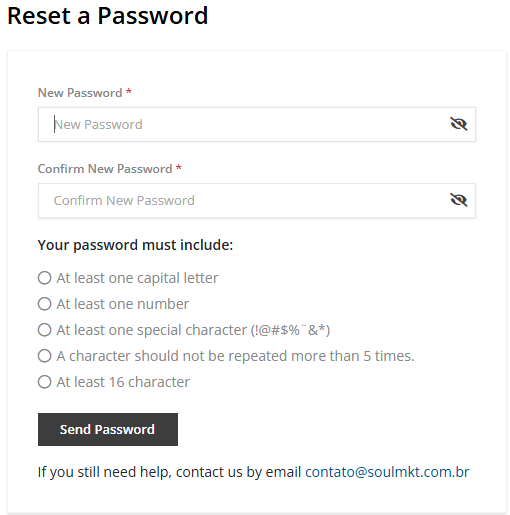
Once clicked, you will be redirected to a page where you can define a new password.
Creating a New Password
#On the reset page, enter your new password in the designated fields.
Confirm the new password in the corresponding confirmation field.
Click “Proceed” to complete the update process.
Accessing the Admin Panel
#After resetting your password, you will be able to log into the admin panel using the new password.
Logging into the Seller Panel
#After resetting, log in to the seller panel as usual.
Need Help?
If you have any questions or encounter difficulties during the process, feel free to contact our support team.