
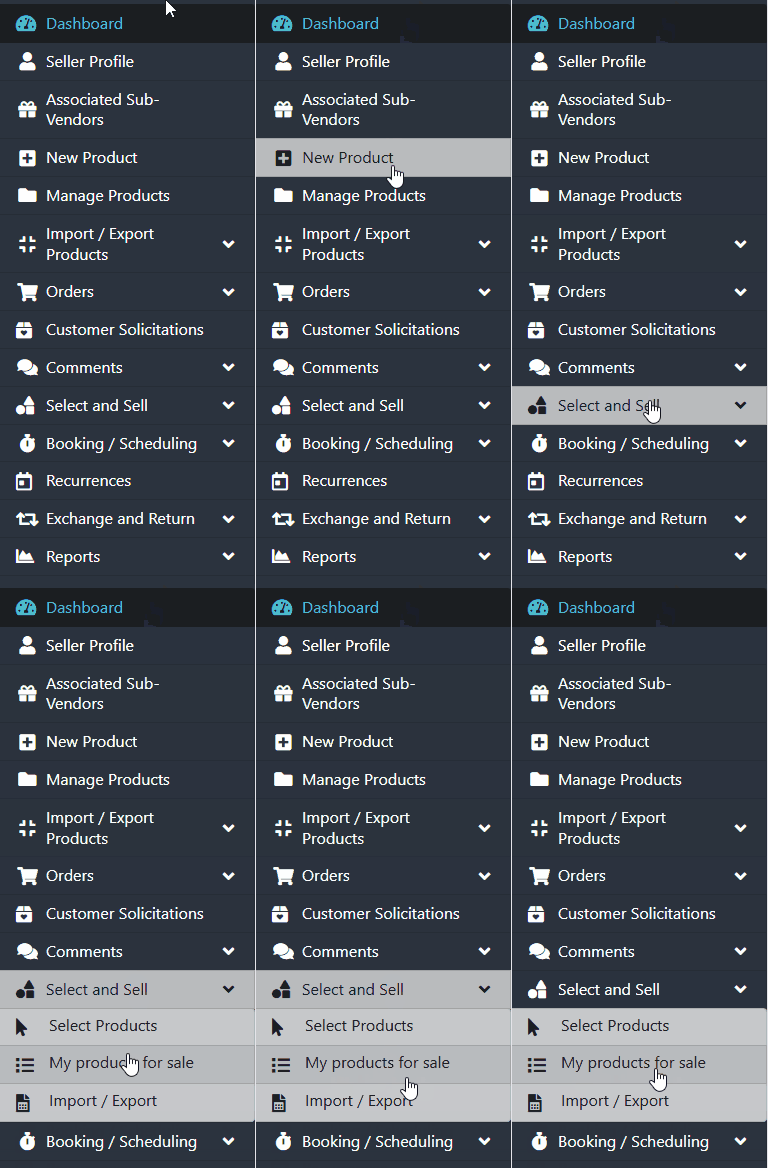
To begin, navigate through the side menu to the “Select and Sell” tab. A new submenu will appear — select “My Products for Sale”.
There are two ways to manually update a product’s price:
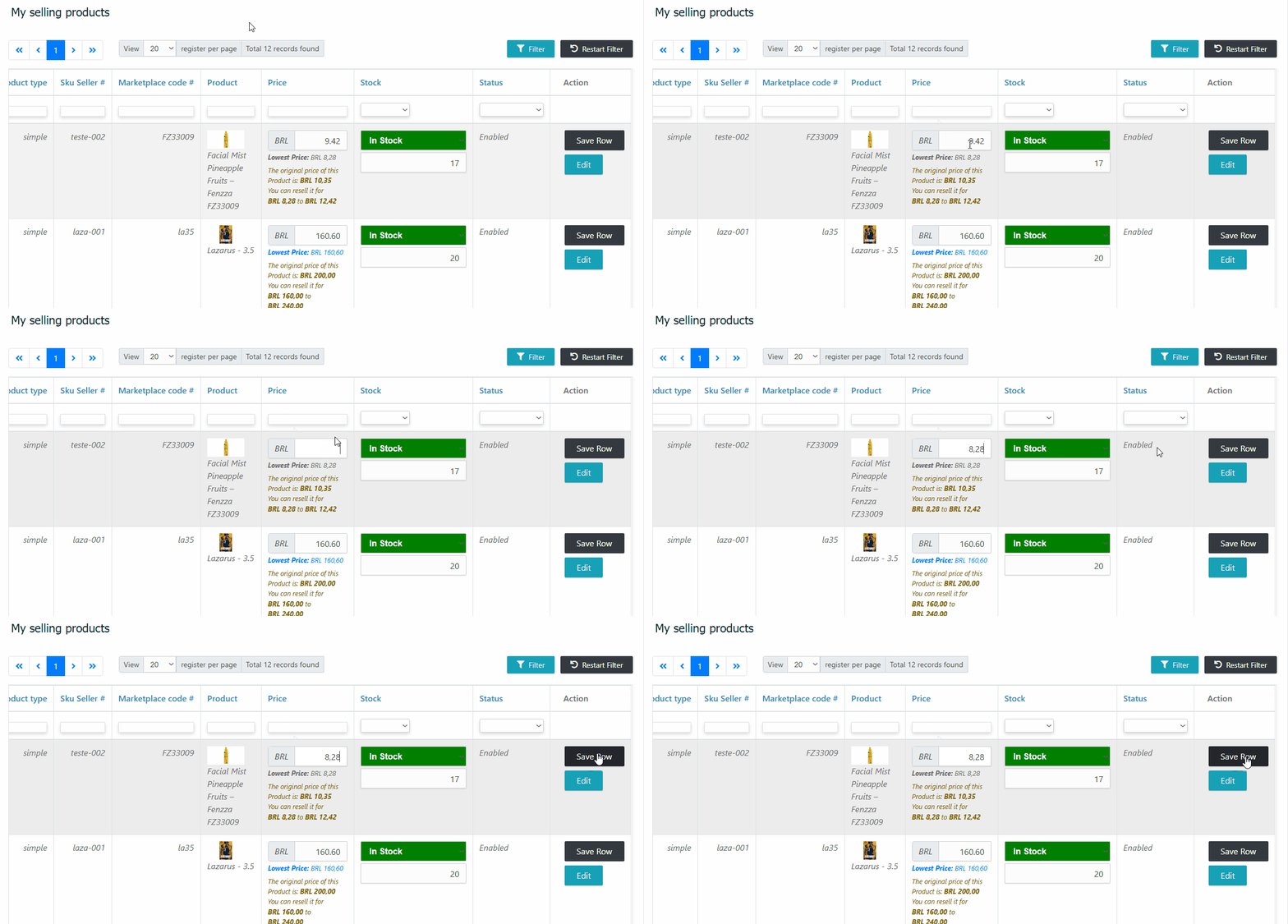
Without accessing the product page
– In the product list, locate the item you wish to modify.
– Ensure the price is within the range allowed by the marketplace.
– Edit the price directly in the list and click the “Save Row” button.
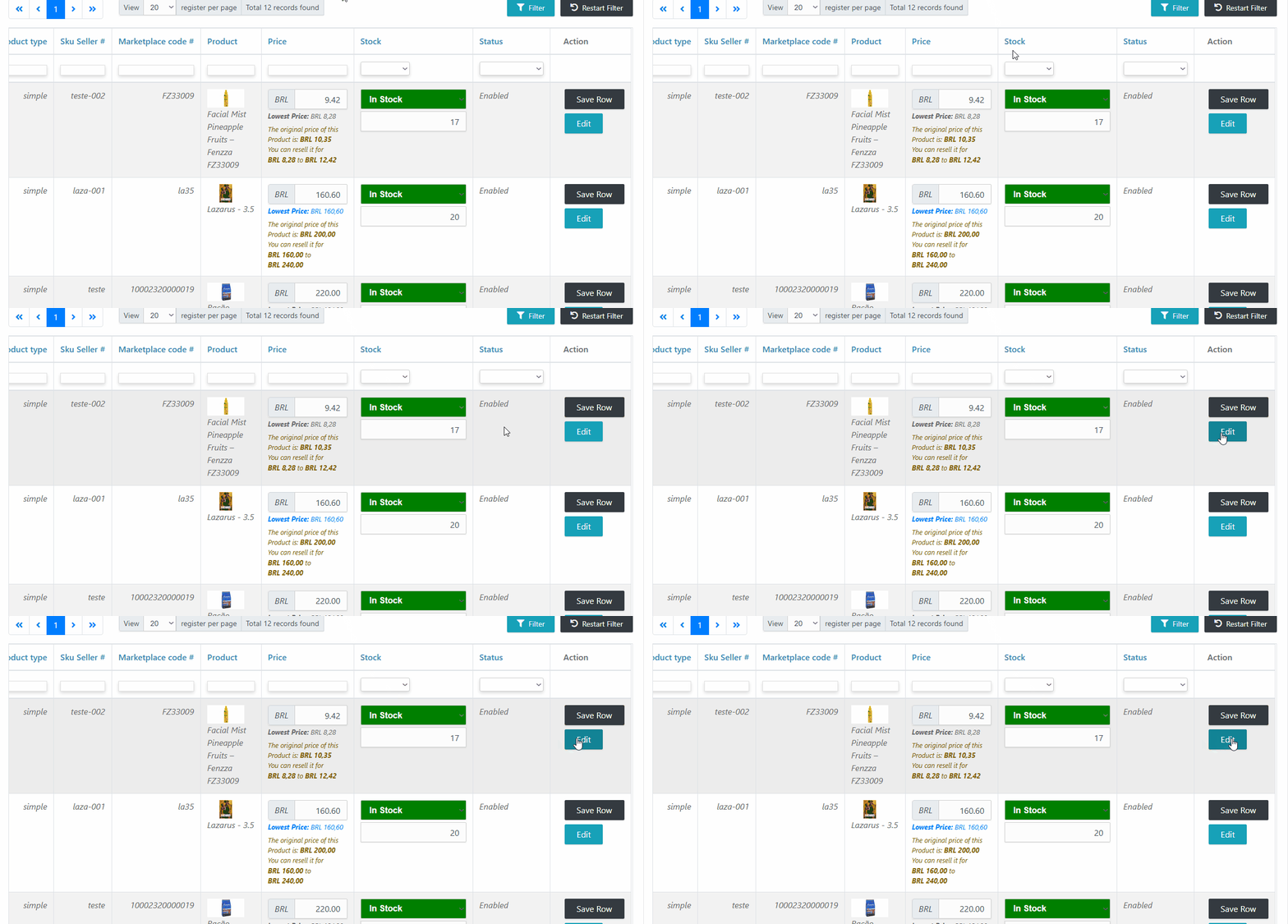
Accessing the product
– In the product list, locate the item you wish to update.
– Click the blue Edit button.
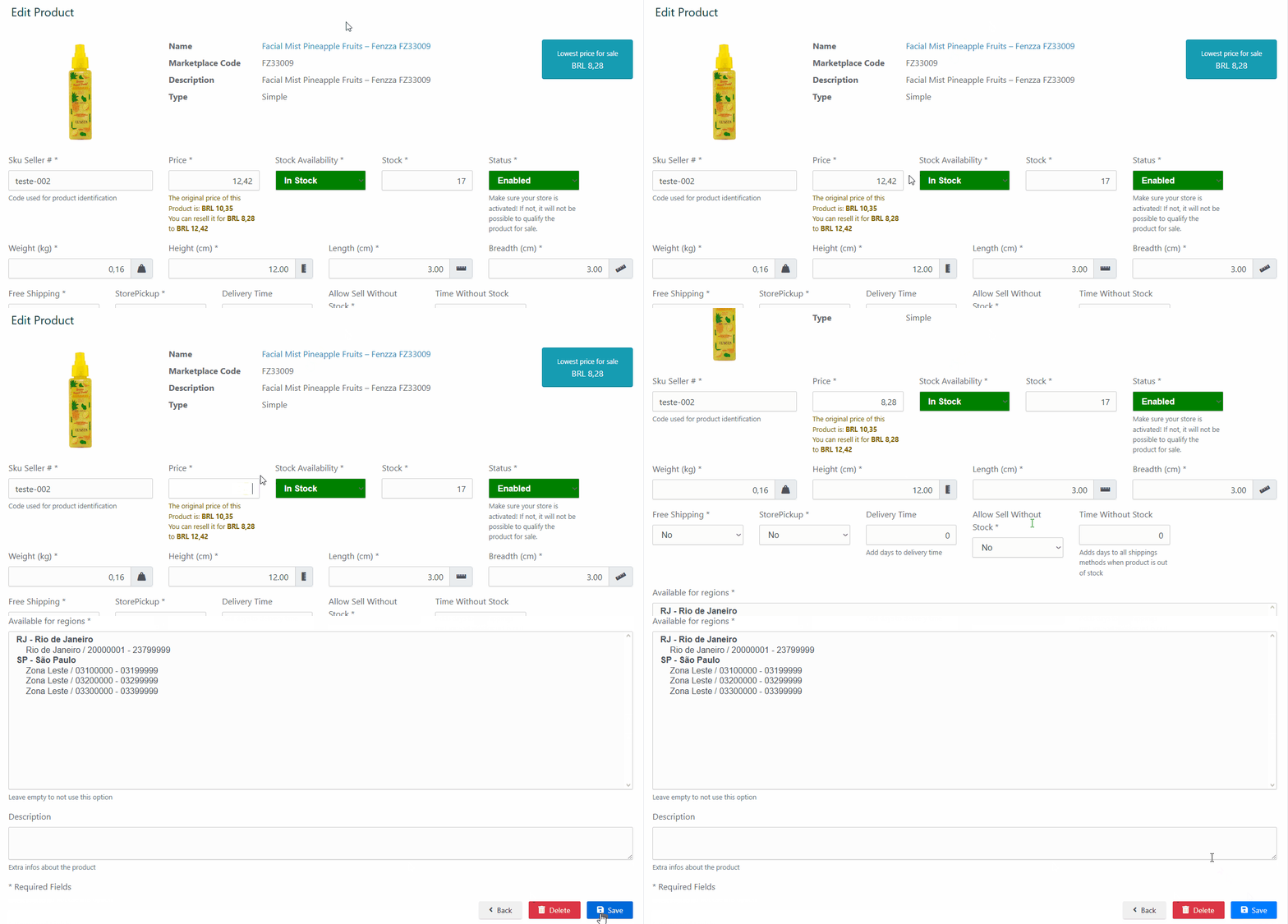
Tip: In the upper right corner, a blue icon displays the lowest sale price currently offered by other resellers for the same product. Use this as a reference when setting your price.
Update the Price
– In the Price tab, enter the desired new value.
– Make sure the price is within the marketplace’s allowed range.
– Click the Save button to confirm the change.
Then, verify that the new price has been correctly applied.
Need Help?
If you have any questions or need assistance, please contact the support team. We’re here to help!