
Create the Gift Product #
Before setting up the rule, it is necessary to create the product that will be offered as a gift.
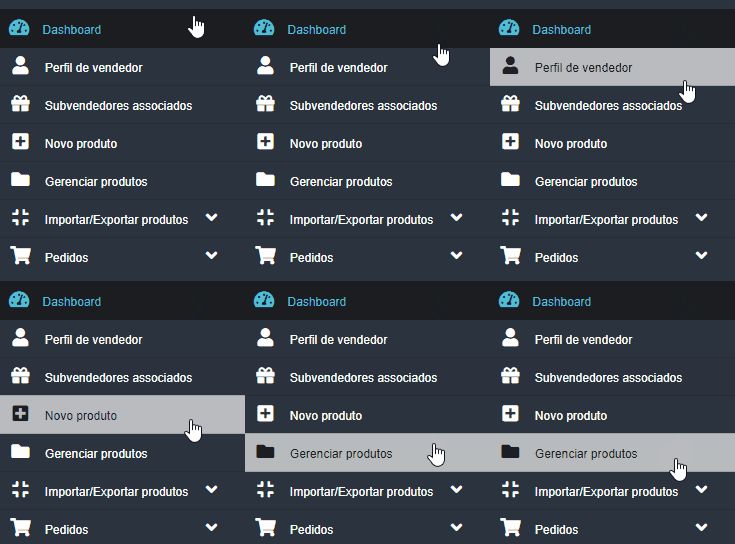
First, in the side menu, go to the Manage Products tab.
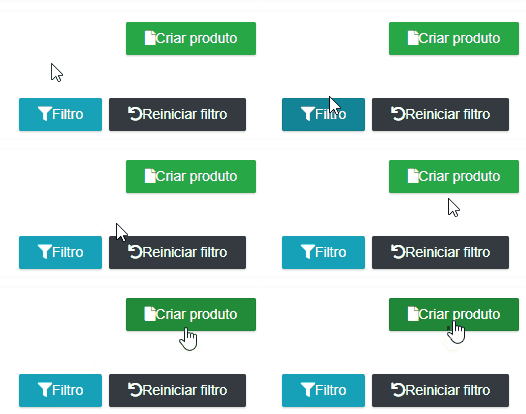
Click on the green Create Product button
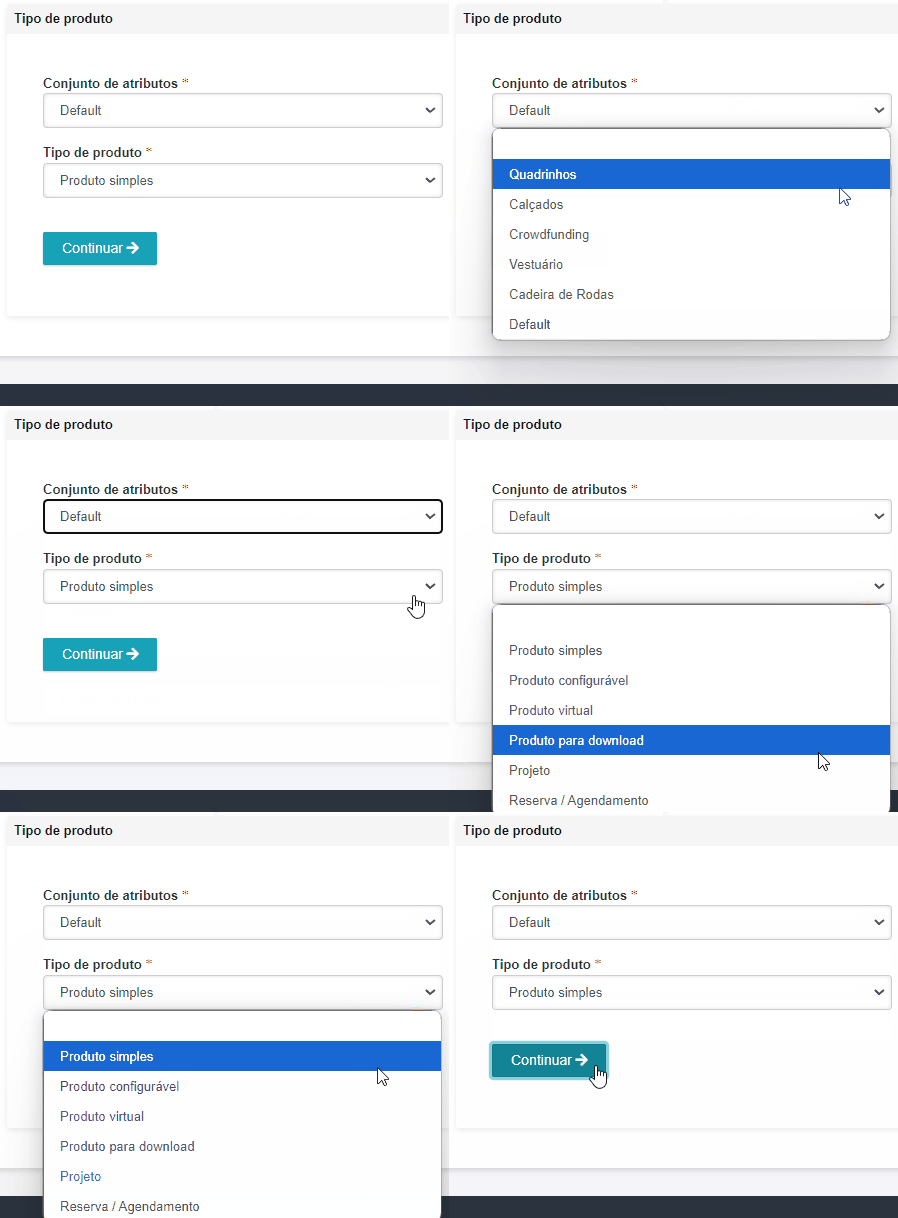
Select the Product type and click Continue.
Fill in all required fields. Pay special attention to the Inventory field: ensure that the product has stock and that the availability status is marked as ‘In Stock

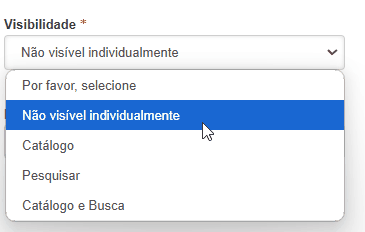
Set the product visibility to Not Visible Individually to ensure it does not appear as an item for direct sale in the store.
After filling in all the fields, click Save and Continue Editing to save the product
Set up the Cart Discount Rule #
With the gift product created, it’s now time to set up the discount rule.
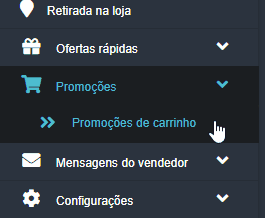
In the side menu, go to the Promotions tab and select the Cart Promotions option.
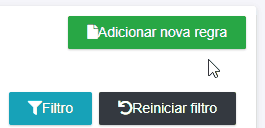
Click on the green Add New Rule button in the upper right corner
Fill in the fields as follows: #
- Rule Name: Set a clear and descriptive name for the rule.
- Description: Optional, but can be used to detail the promotion.
- Status: Leave as Active.
- Shipping Deadline: No need to set this.
- Customer Group: Select all options.
- Coupon: Select No Coupon.
- Uses per Customer: Set to 0 (unlimited use).
- Start and End Date: Set the period during which the promotion will be valid.
- Priority: Set to 0.
- Public in RSS Feed: Mark as Yes.
Set Up Conditions (Optional) #
You can set specific conditions to activate the gift, such as
- Minimum quantity of items in the cart
- Specific payment methods..
- Delivery ZIP code.
If you need help setting up more specific conditions, open a support ticket in the support panel.
Set Up Rule Actions #
In the Actions tab, follow these instructions:
- Apply: Select Add promotional items automatically with products.
- Discount Amount: Set to 1.
- Type: Select All SKUs below.
- Promotional Items: Enter the SKU of the gift product that was created.
- Maximum Discount per Quantity: Set to 1. This ensures that only one gift is added, regardless of the number of items in the cart.
Set the following options as follows:
- Discount Quantity Step: 0.
- Apply to Shipping Amount: No.
- Free Shipping: No.
- Stop Further Rules Processing: No.
- Automatically Add Simple Product Without Confirmation: Yes.
Finalize and Validate #
After filling in all the information, click Save and Continue Editing.
Test the rule by adding a product to the cart and checking if the gift was correctly included.
If the gift appears alongside the product in the cart, the rule has been successfully configured.
If you encounter any difficulties during the process, don’t hesitate to open a support ticket in the support panel. We are here to help.